
Resending and cancelling
The Invitations page lists every invitation your academy has sent. Owners, admins, and anyone whose role can manage Invitations can resend, cancel and delete them.
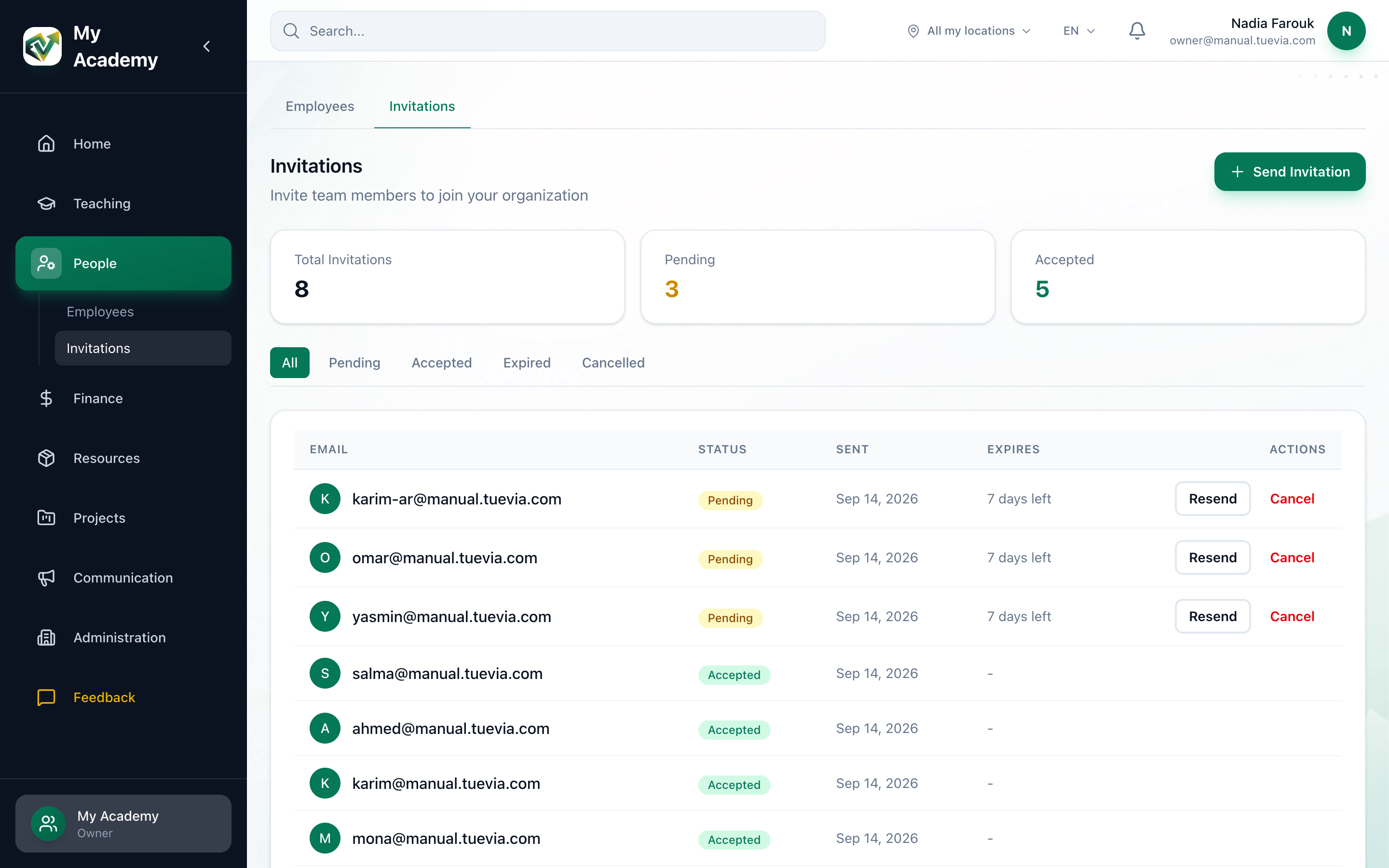
- Filter by status
- Resend
- Cancel
At the top, Total Invitations, Pending and Accepted count them. The buttons All, Pending, Accepted, Expired and Cancelled show only the invitations with that status.
Each row shows the address, its Status, when it was Sent, and under Expires how long a pending invitation has left: 3 days left, 1 day left, or hours on its last day.
Resend an invitation
Section titled “Resend an invitation”Resending emails a new link that lasts another 7 days. The link in the earlier email stops working.
-
Find the invitation. It must be Pending.
-
Press Resend.
Resend when the email did not arrive, or when the invitation is about to run out.
Cancel an invitation
Section titled “Cancel an invitation”Cancelling stops the link working. If the person opens it, they are told This invitation has been cancelled. Please contact the organization for a new invitation.
-
Find the invitation. It must be Pending.
-
Press Cancel. Its status becomes Cancelled.
Delete an old invitation
Section titled “Delete an old invitation”An invitation that is Cancelled or Expired has a Delete button instead. Press it, and press OK when your browser asks Are you sure you want to permanently delete this invitation?
What happens next
Section titled “What happens next”- To invite the same person again, send a new invitation.
- An accepted invitation stays in the list as Accepted, and the person is in the employees list.