
Deleting items and categories
Delete an item the academy no longer has, or a category it no longer needs. Owners, admins, and anyone whose role can manage Resources can delete.
Delete an item
Section titled “Delete an item”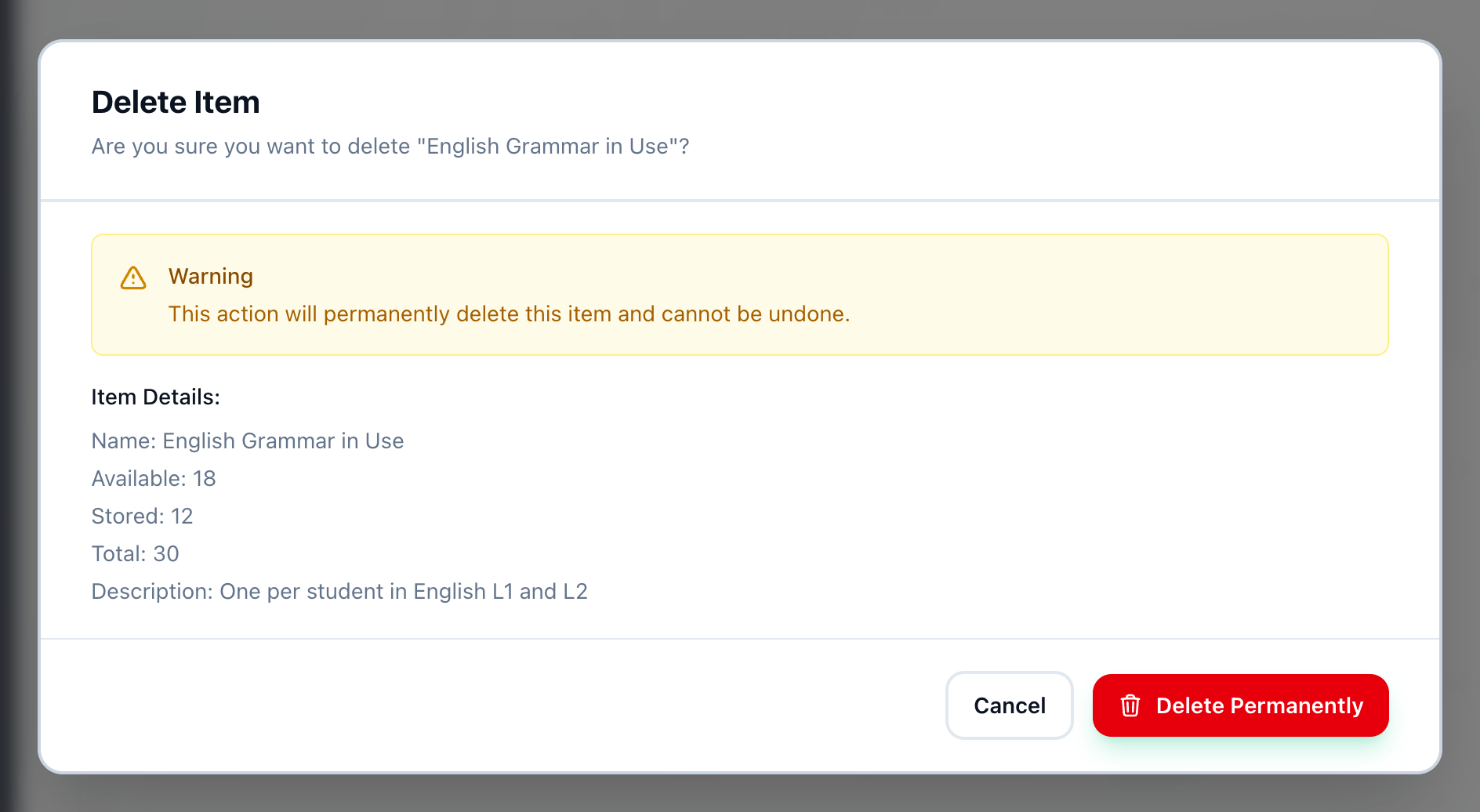
- Delete Permanently
-
On Resources, open the Items tab and press the bin button at the end of the item’s row.
-
Delete Item shows the item’s name, Available, Stored and Total, and a warning that it cannot be undone. Press Delete Permanently.
The item leaves the Items tab, and the Inventory tab too if some of it was stored. If you only want fewer of something, change its available quantity instead.
Delete a category
Section titled “Delete a category”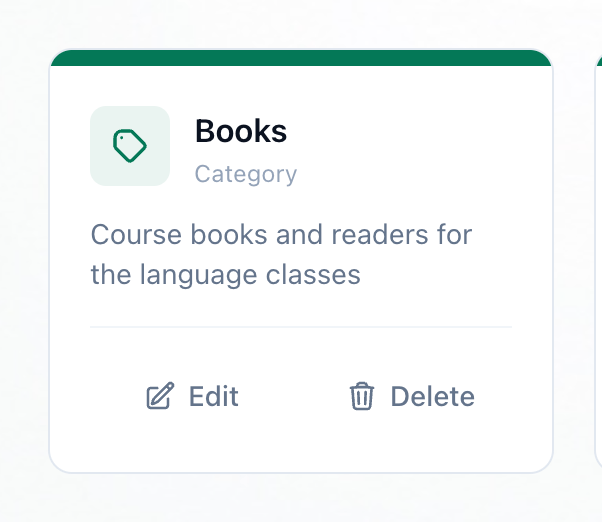
- Delete
-
On the Categories tab, press Delete on the category’s card.
-
Your browser asks Are you sure you want to delete this category?. Press OK.
Deleting a category does not delete its items. They stay on the Items and Inventory tabs with Unknown as their category. To keep them tidy, move them first: edit each item and choose another Category - see change an item. An item left with Unknown can be given a category the same way.
If something goes wrong
Section titled “If something goes wrong”-
Error in the Delete Item dialog
The item was not deleted, and the dialog says why. Close it and try again. -
The bin button or Delete is greyed out
Your role can view Resources but not manage them. An owner or an admin can do it.
What happens next
Section titled “What happens next”To start again with something new, add an item or a category.