
Categories
Categories group what your academy owns: course books in one, laptops and projectors in another. Every item belongs to a category, so a category comes first. Owners, admins, and anyone whose role can manage Resources can add and change categories. Somebody whose role can only view Resources sees the same page with its buttons greyed out.
Add a category
Section titled “Add a category”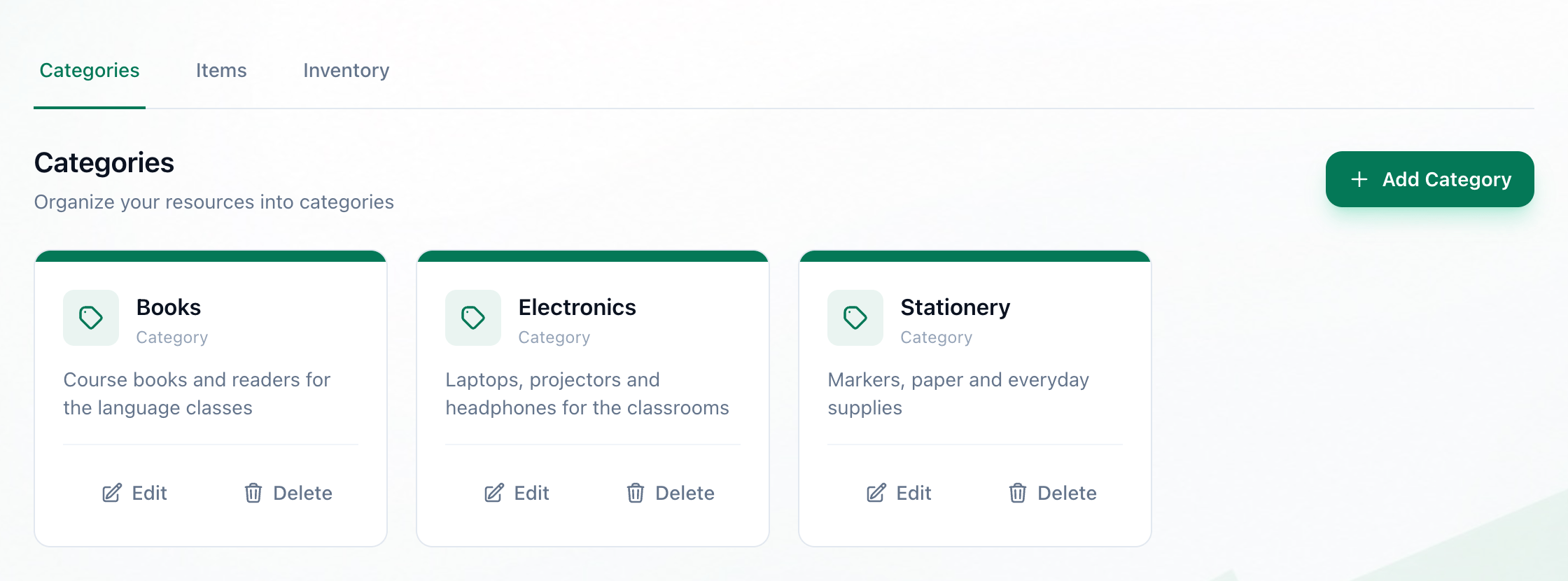
- Categories
- Add Category
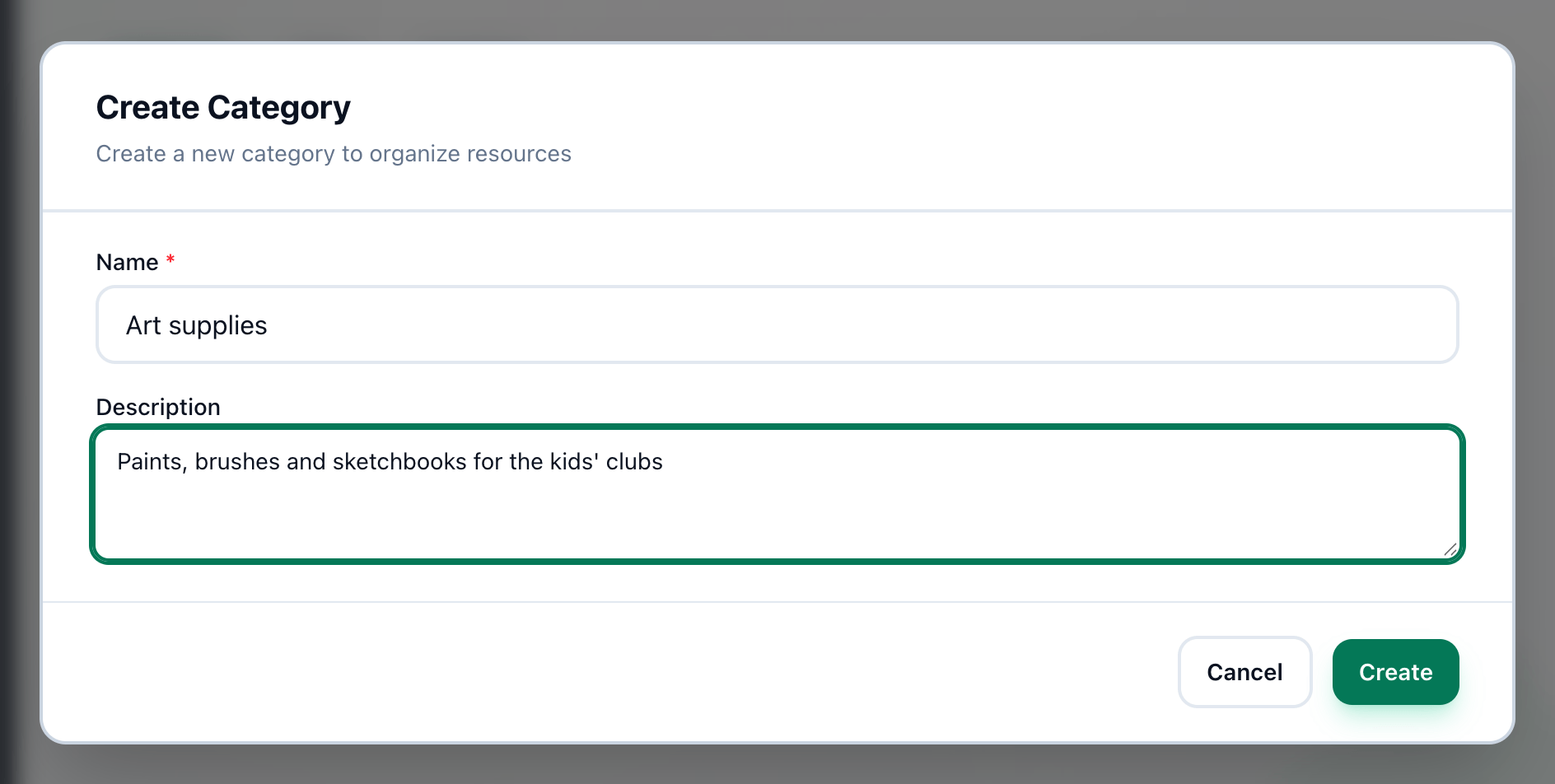
- Name
- Description
- Create
-
Open Resources in the sidebar. The page opens on the Categories tab.
-
Press Add Category.
-
Enter the category’s name in Name.
-
Say what belongs in it in Description, if that helps. It is optional.
-
Press Create. The category’s card appears with the others.
Each card shows the category’s name and its description, or No description provided when it has none.
Change a category
Section titled “Change a category”
- Edit
-
Press Edit on the category’s card. Edit Category opens with the name and description filled in.
-
Change Name or Description.
-
Press Update.
The items in the category show its new name in their Category column straight away.
If something goes wrong
Section titled “If something goes wrong”-
Category name is required
The name is only spaces. Type a name. -
A new category written only in Arabic is not created
Tuevia needs at least one Latin letter (a to z) or digit in a new category’s name. Add one - a brand, a code, a year. Renaming an existing category is not affected. -
Add Category and Edit are greyed out
Your role can view Resources but not manage them. Hovering over the button says You don’t have permission to add categories. An owner or an admin can do it, or give your role permission to manage Resources.
What happens next
Section titled “What happens next”A category is ready for its items: adding and editing items. To remove a category, see deleting items and categories.