
Changing someone's role
An employee’s role decides what they can see and do. Owners, and anyone whose role can manage Users, can change it.
Change a role
Section titled “Change a role”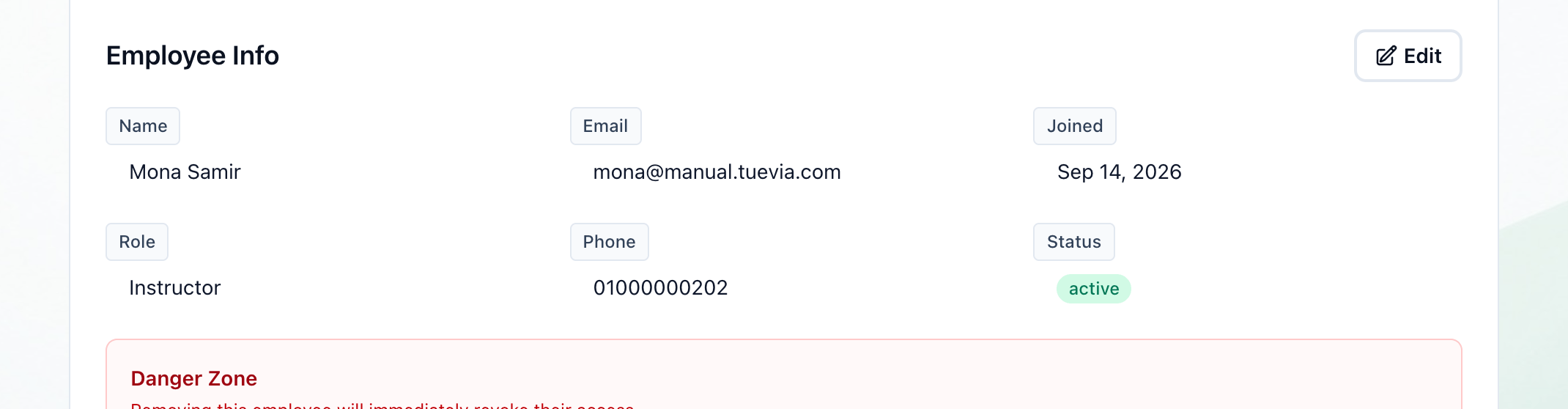
- Edit
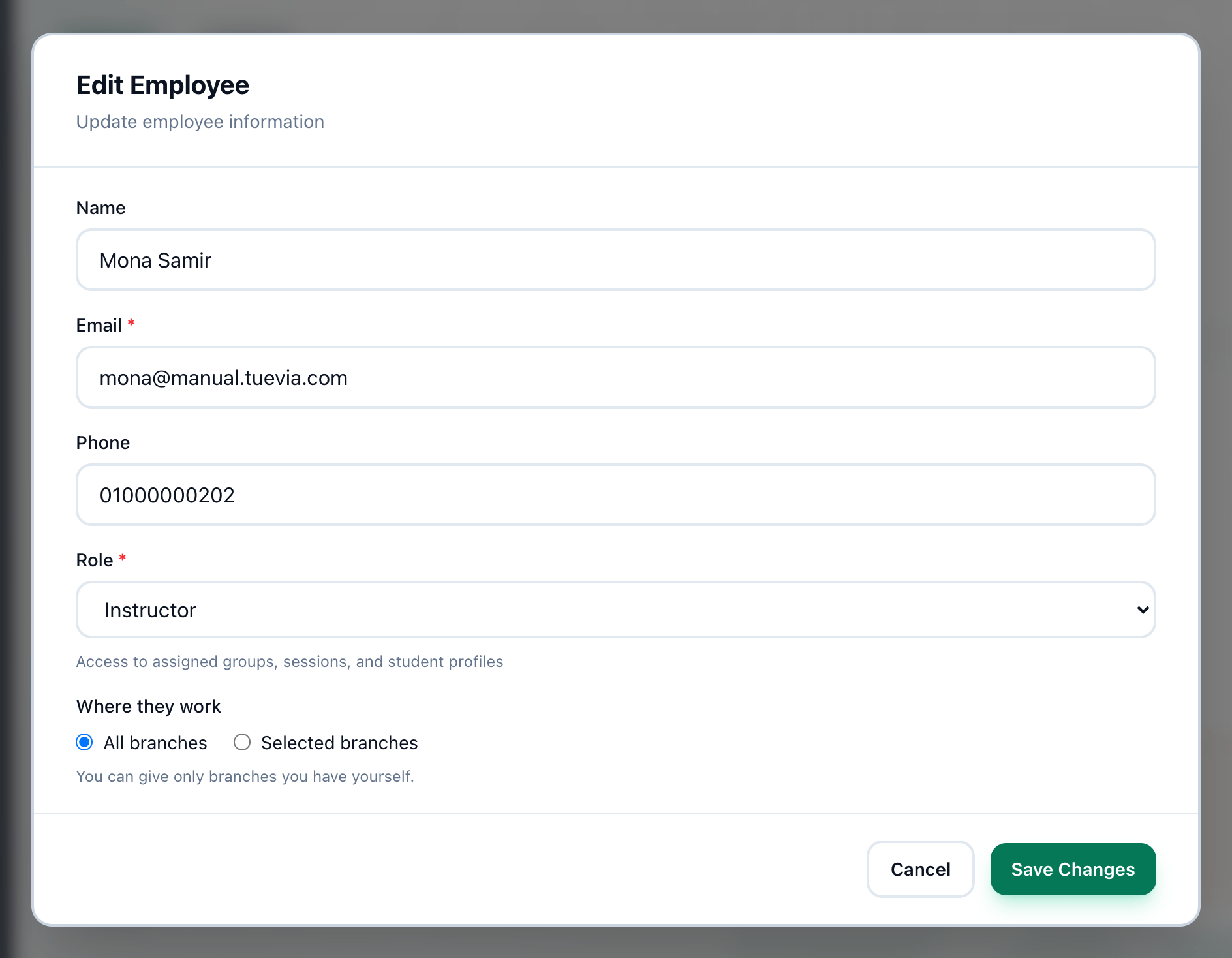
- Role
- Save Changes
-
Open their profile from the employees list.
-
Press Edit.
-
Choose the new Role. Under the list, the role’s description, or the number of permissions it has, tells you what it gives.
-
Press Save Changes.
What they can open changes with the role: a page their new role does not reach leaves their sidebar.
The Owner role is not in the list. To make somebody the owner, see Transferring ownership.
If something goes wrong
Section titled “If something goes wrong”The dialog closes when you press Save Changes, whether or not the change was made. If the profile still shows the old role, the change was refused. That happens when they work in a branch you do not work in: ask an owner, or somebody who works in all their branches.
What happens next
Section titled “What happens next”- To change what a role itself may do, for everyone who has it, see What a role may do.