
What a role may do
A role’s permissions decide which pages its members open and what they may change. Changing them changes it for everyone with the role. Anyone who can manage Roles and works in all branches can change them.
Choose a role’s permissions
Section titled “Choose a role’s permissions”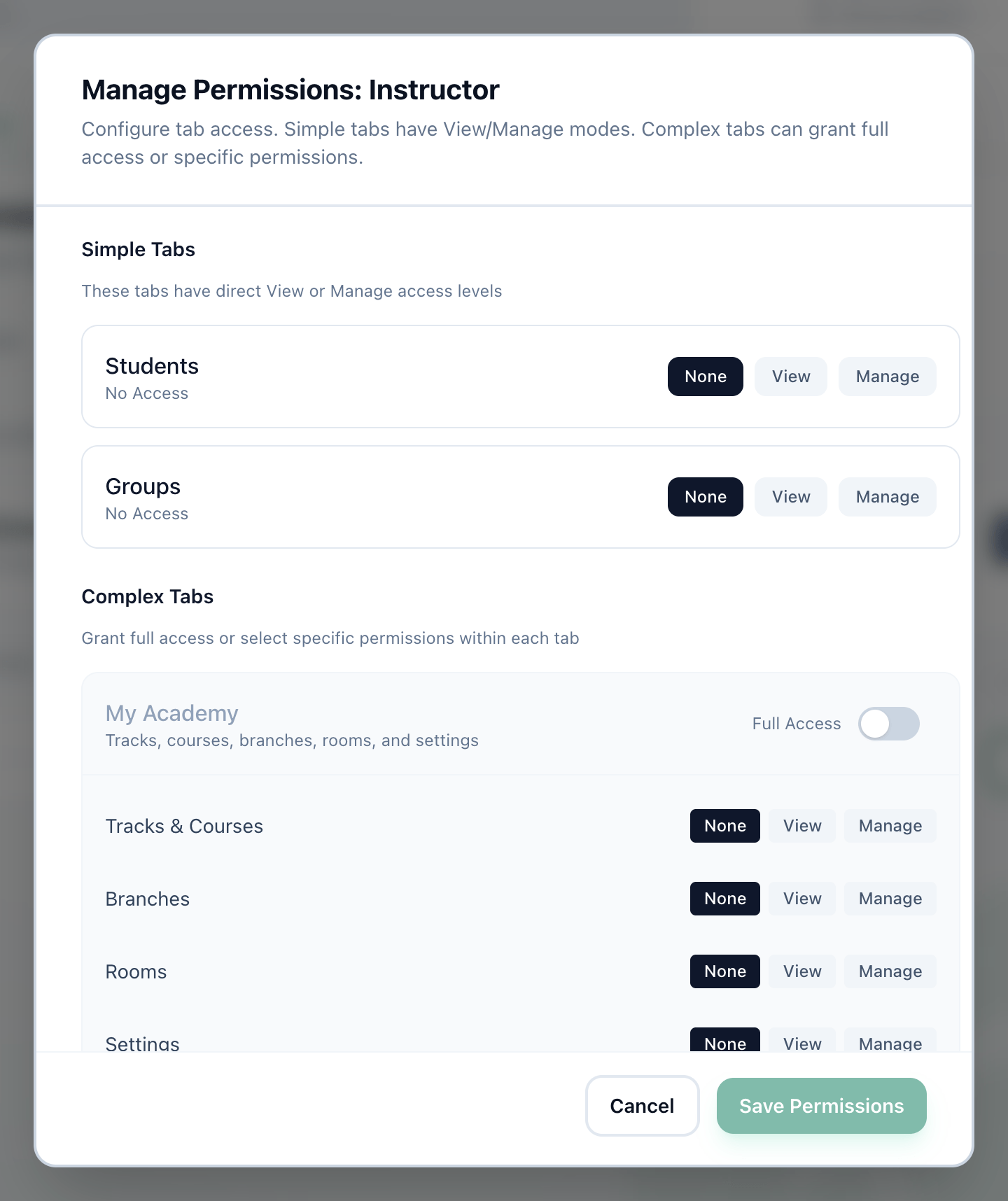
- Students and Groups
- My Academy and the other tabs
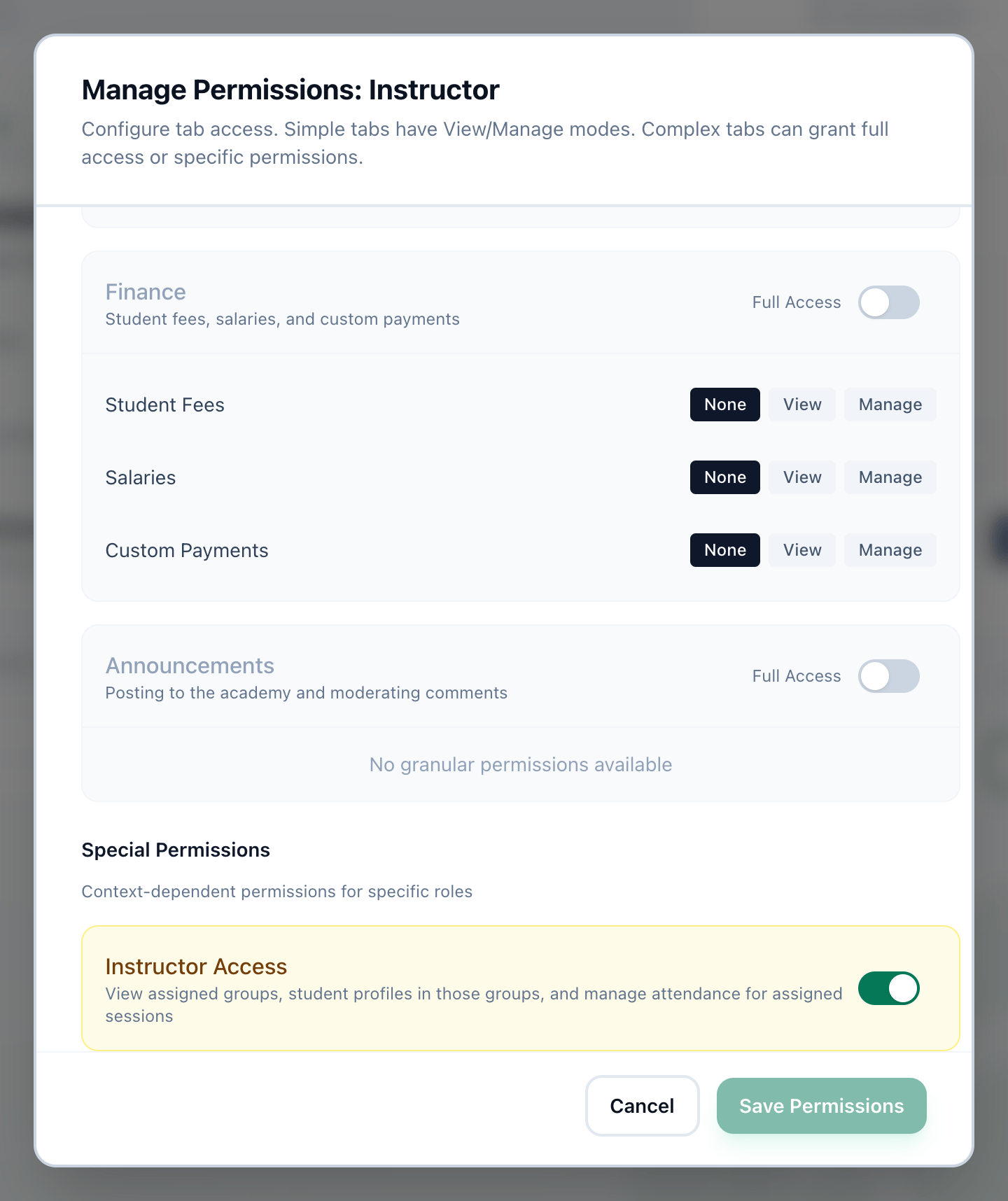
- Instructor Access
- Save Permissions
-
On the Roles tab, press Permissions on the role’s card.
-
Under Simple Tabs, choose None, View or Manage for Students and for Groups. View lets them look; Manage lets them change things too.
-
Under Complex Tabs, switch on Full Access to give everything in a tab. Or leave it off and choose None, View or Manage for each part of the tab.
-
Under Special Permissions, switch on Instructor Access for people who teach: it shows them the groups they are assigned to, the students in those groups, and the register for their sessions.
-
Press Save Permissions. It can be pressed once you have changed something.
The parts of each tab
Section titled “The parts of each tab”-
My Academy
Tracks & Courses, Branches, Rooms and Settings. -
Employees
Users, Roles, Invitations and Leave Requests. -
Finance
Student Fees, Salaries and Custom Payments. -
Announcements
Full Access only: posting to the academy and moderating comments.
With Full Access on, the parts are replaced by a line saying the role has full access to that tab.
The Owner role’s permissions cannot be changed. Its dialog says Owner has full access to all features. Permissions cannot be modified. and offers only Close.
What happens next
Section titled “What happens next”- Everyone with the role sees the change in their sidebar: pages the role no longer reaches disappear.
- Give the role to somebody.