
Adding a track
A track groups courses of one kind: Languages, Coding, School subjects. Courses are added inside a track, and groups are opened from courses.
Owners and admins can add tracks. So can anyone whose role, under My Academy, has Tracks & Courses set to Manage, and who works in all of the academy’s locations. Anyone else who can open the page, such as someone with Tracks & Courses set to View, sees the buttons greyed out.
Add a track
Section titled “Add a track”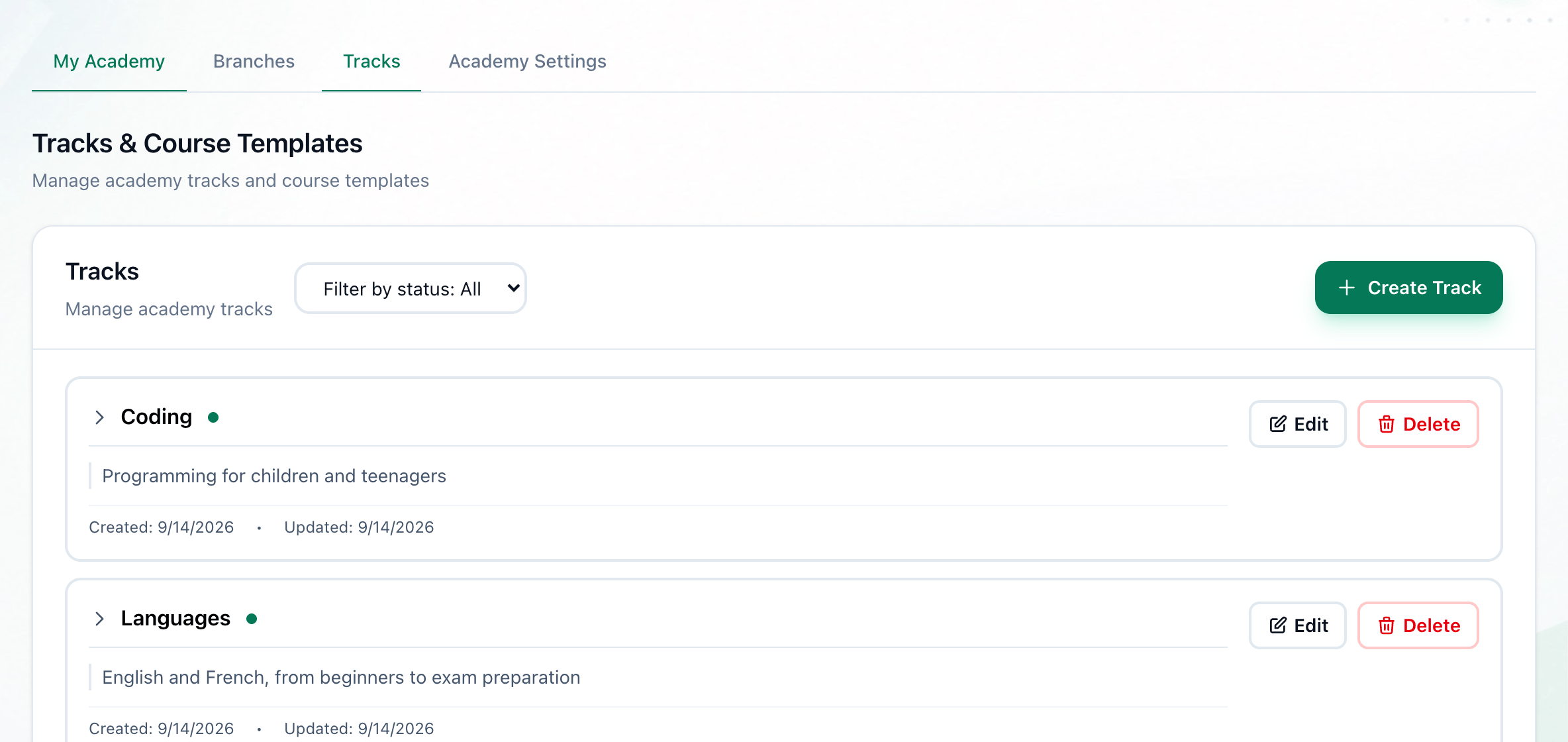
- Create Track
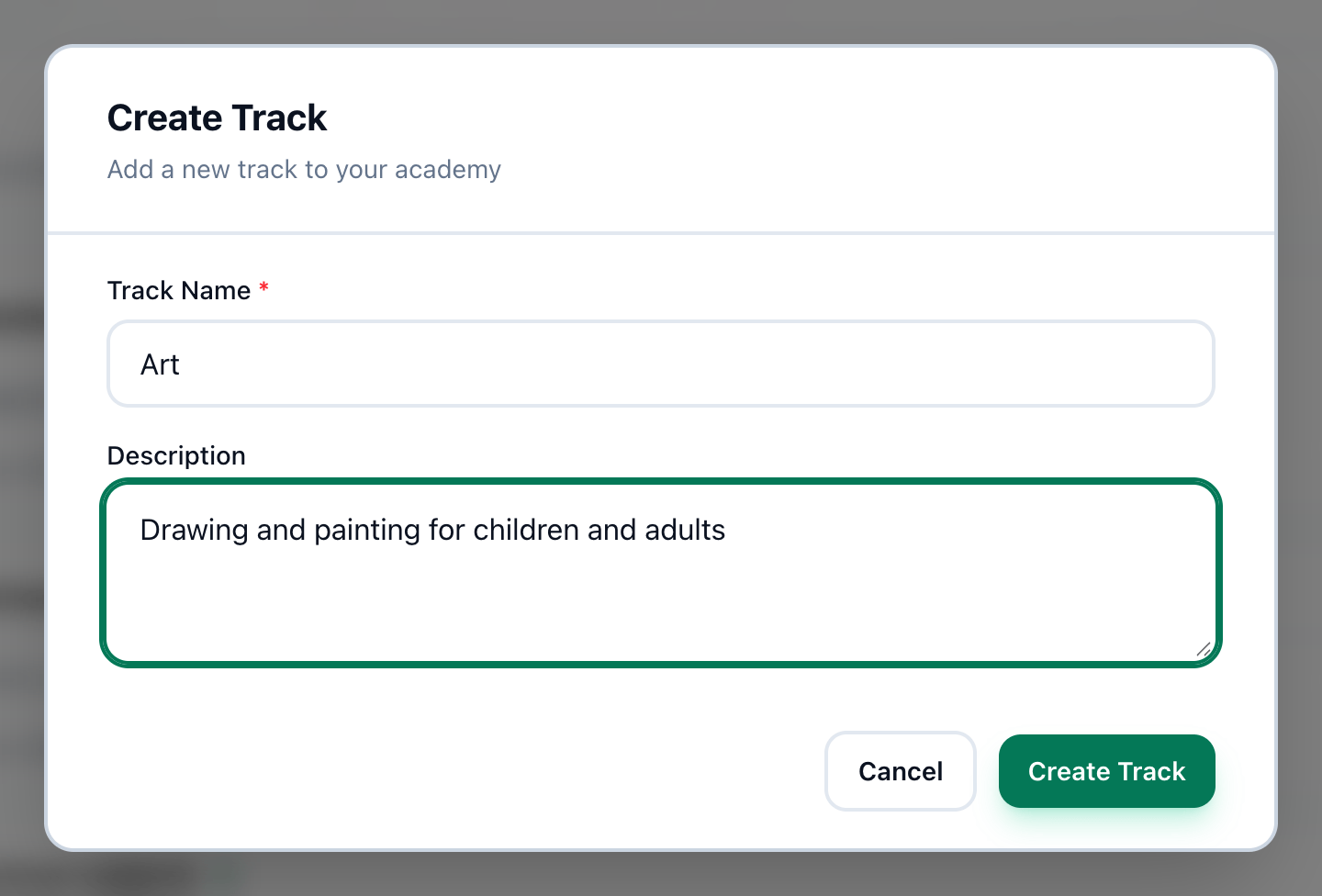
- Track Name
- Description
- Create Track
-
In Administration, open Tracks and press Create Track.
-
Enter the track’s name in Track Name.
-
If you like, describe the track in Description. It shows under the track’s name.
-
Press Create Track. The dialog closes and the track appears in the list.
A new track starts as active. To see tracks of one status only, use the Filter by status: All list beside Tracks.
If something goes wrong
Section titled “If something goes wrong”These messages appear inside the dialog.
-
Track name is required
Track Name is empty, or holds only spaces. -
Track already exists
The academy already has a track with this name. Choose another name, or add your courses to the track you have.
What happens next
Section titled “What happens next”Open the track and add its courses: Courses.