
Your notifications
Tuevia tells you when something happens that concerns you: a new announcement, a leave request, a payment. Everybody in the academy has notifications, in the bell and on the Notifications page.
The bell
Section titled “The bell”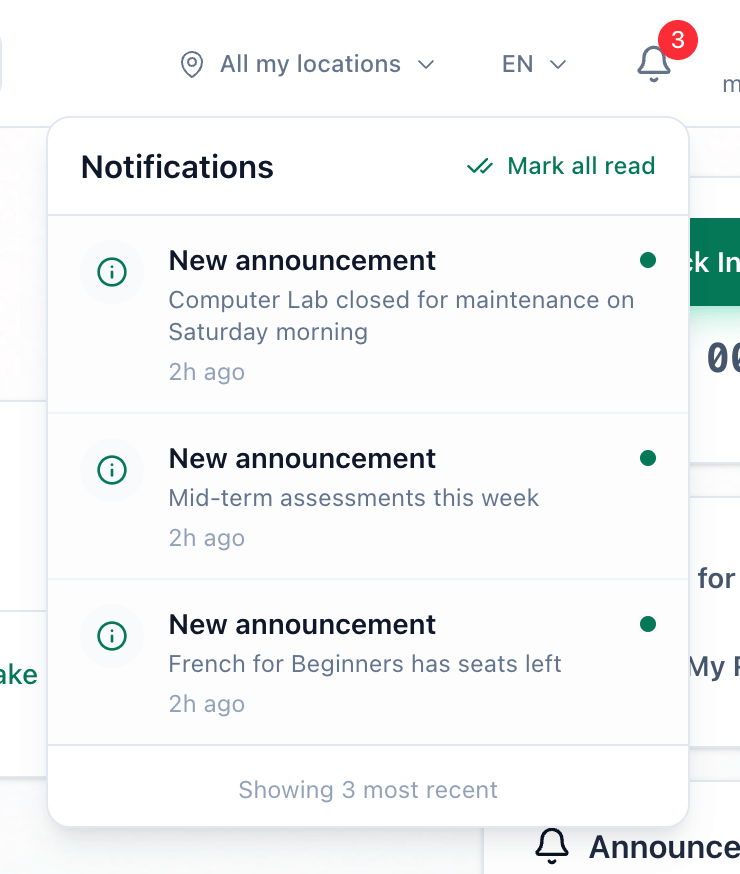
- The bell
- Mark all read
-
Press the bell at the top of the screen. The red number on it is how many notifications you have not read. Tuevia checks for new ones every 30 seconds.
-
The list shows your ten latest notifications, unread ones in bold with a dot. Press one to mark it read and open the page it is about. Press Mark all read to mark every one read without opening them.
The Notifications page
Section titled “The Notifications page”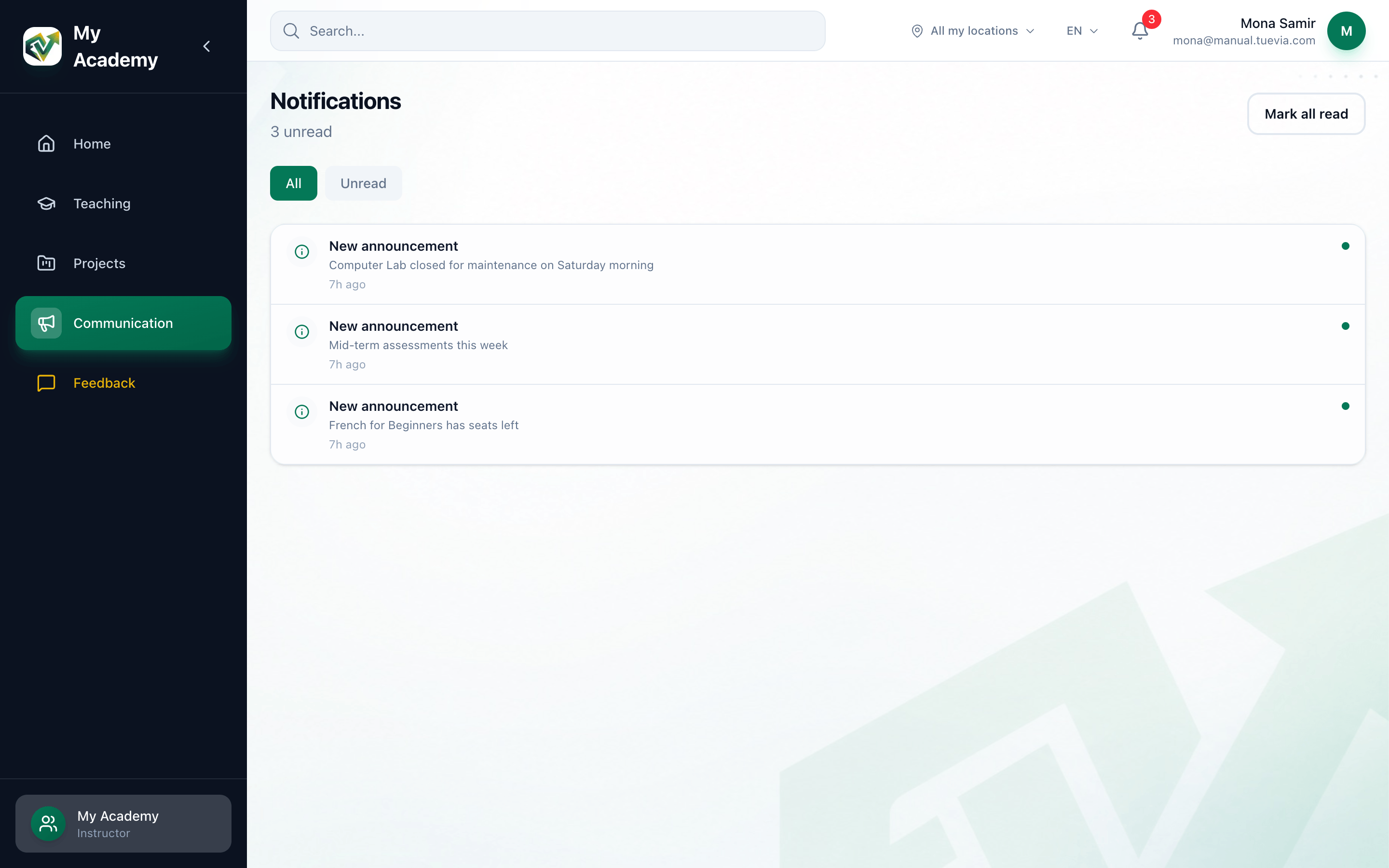
- Communication
- Mark all read
- All and Unread
- A notification
-
In the sidebar, open Communication. If you can see Announcements too, choose Notifications under it; if not, Communication opens straight onto this page. Under the heading, the page says how many notifications are unread, or You are all caught up.
-
Mark all read marks every notification read. It shows only while some are unread.
-
All shows your notifications; Unread shows only the ones you have not read.
-
Press a notification to mark it read and open the page it is about.
The page shows your ten latest notifications.
What happens next
Section titled “What happens next”Which events send a notification, and to whom, is in What you are notified about.