
Pinning, archiving and deleting
Pin an announcement to keep it above the others. Archive or delete it when it no longer applies.
The ⋯ menu on an announcement appears only to people who may manage it. You need the Announcements permission, and the announcement must be your own, or be heard where you work: every branch for a Whole academy announcement, that branch for a branch announcement. Owners can manage every announcement on this page.
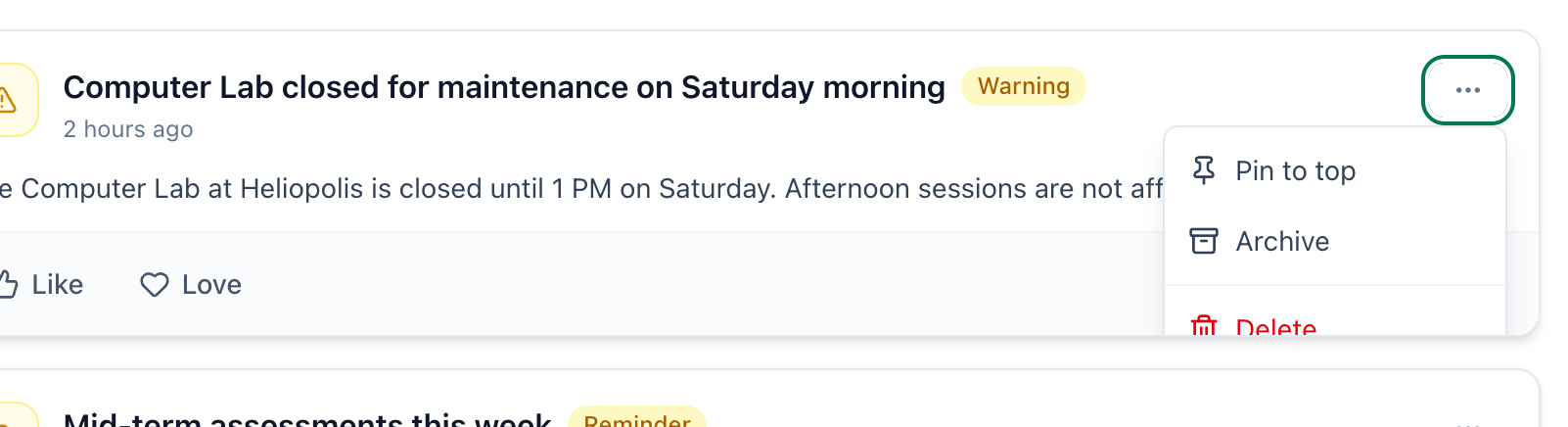
- Menu
- Pin to top
- Archive
- Delete
Pin an announcement
Section titled “Pin an announcement”-
On the Announcements page, press ⋯ on the announcement.
-
Choose Pin to top. The announcement moves above the others and is marked Pinned.
To unpin it, press ⋯ again and choose Unpin. It goes back among the others, by date.
Archive an announcement
Section titled “Archive an announcement”-
Press ⋯ on the announcement.
-
Choose Archive. The announcement leaves the Announcements page and the home screen.
No page in the app lists archived announcements, so archive only what nobody needs to read again.
Delete an announcement
Section titled “Delete an announcement”-
Press ⋯ on the announcement.
-
Choose Delete.
-
Confirm with OK when the browser asks Are you sure you want to delete this announcement? The announcement and its comments are gone from the page, and the app has no way to bring them back.
What happens next
Section titled “What happens next”Pinning, archiving and deleting do not send notifications. Posting an announcement does: see What you are notified about.