
An employee's profile
Press a name in the employees list to open that person’s profile. Anyone who can open the Employees page can read it.
Overview
Section titled “Overview”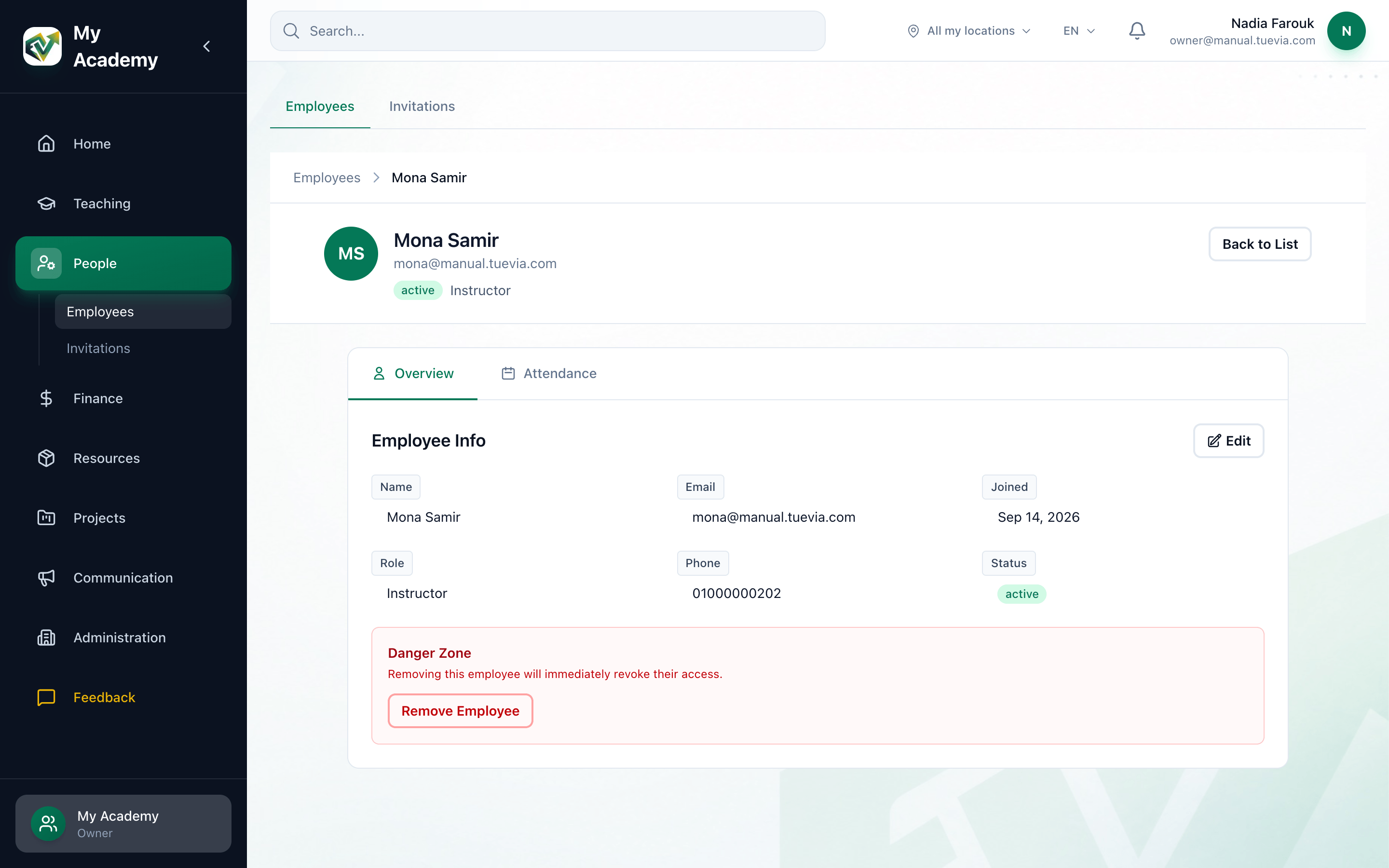
- Employee Info
- Attendance
- Danger Zone
The top of the page shows their name, email address, status and role. Back to List returns to the employees list.
Employee Info shows Name, Email, Joined, Role, Phone and Status. Owners, and anyone whose role can manage Users, also see Edit, which changes their role and where they work.
Attendance
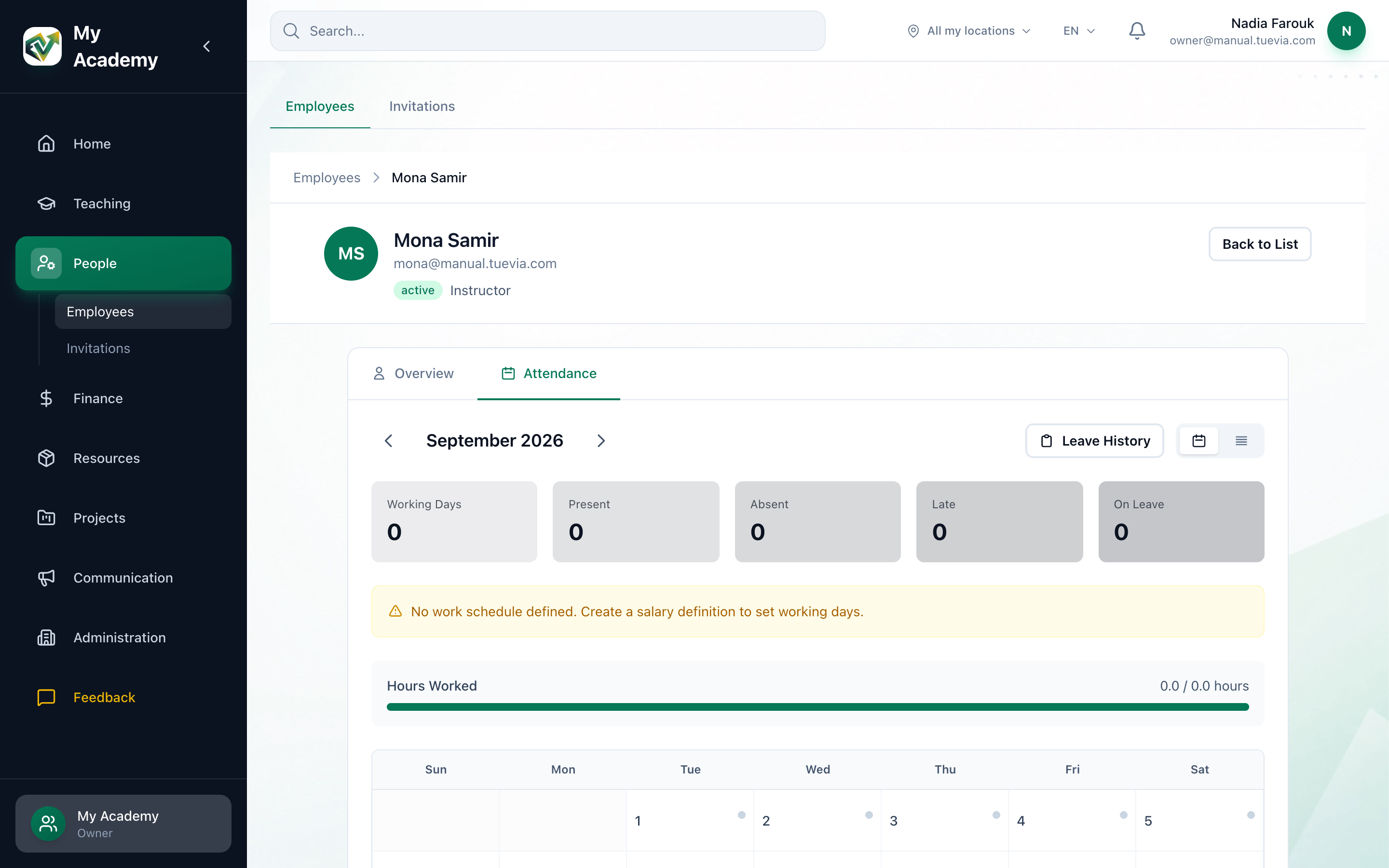
Section titled “Attendance”The Attendance tab shows one month of their checking in and out.
- The month
- Leave History
- Calendar or list
- The month's totals
- The arrows either side of the month move to the month before or after.
- Leave History lists their leave requests, which you can filter by All, Pending, Approved and Rejected.
- The two buttons beside it show the month as a calendar or as a list.
- The totals count Working Days, Present, Absent, Late and On Leave. Work Schedule lists their working days, and Hours Worked compares the hours they worked with the hours expected.
Staff check in and out from their home screen. Working days come from the employee’s salary definition: until they have one, the tab says No work schedule defined. Create a salary definition to set working days. See Salaries.
Remove an employee
Section titled “Remove an employee”Removing somebody takes away their access to your academy straight away. Their Tuevia account is not deleted, and they stay in any other academy they work in. Owners, and anyone whose role can manage Users, can remove an employee.
-
Open their profile, on the Overview tab.
-
Under Danger Zone, press Remove Employee.
-
Your browser asks Are you sure you want to remove … from this organization? This action cannot be undone. Press OK.
Tuevia returns to the employees list. To have them back, invite them again.
If something goes wrong
Section titled “If something goes wrong”- Failed to remove employee. Please try again.
The removal did not go through. If it happens again, they may work in a branch you do not work in: ask an owner, or somebody who works in all their branches.