
Taking attendance
Attendance is taken session by session: each student is present, late, absent or excused. Instructors take the register from Home. Owners and anyone whose role can manage Groups can also mark it on the group’s page.
The register is for owners, anyone who can manage Groups, and the instructors assigned to the group.
Take the register
Section titled “Take the register”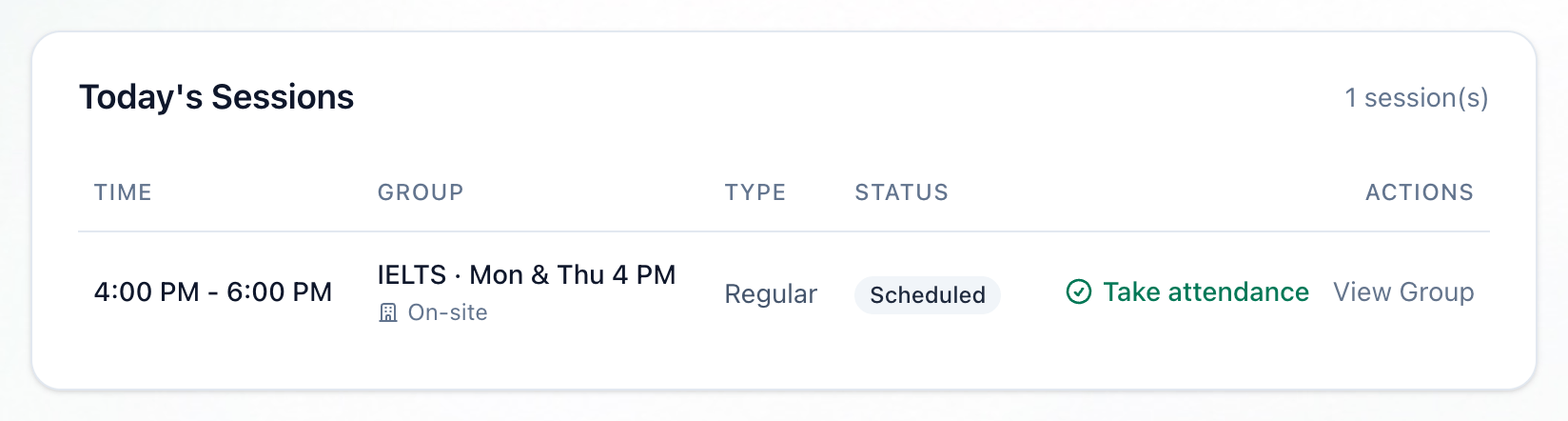
- Take attendance
- Mark all present
- A student's status
- Minutes late
- Reason
- Save attendance
-
On Home, under Today’s Sessions, press Take attendance beside the session. The register opens, with the group’s students.
-
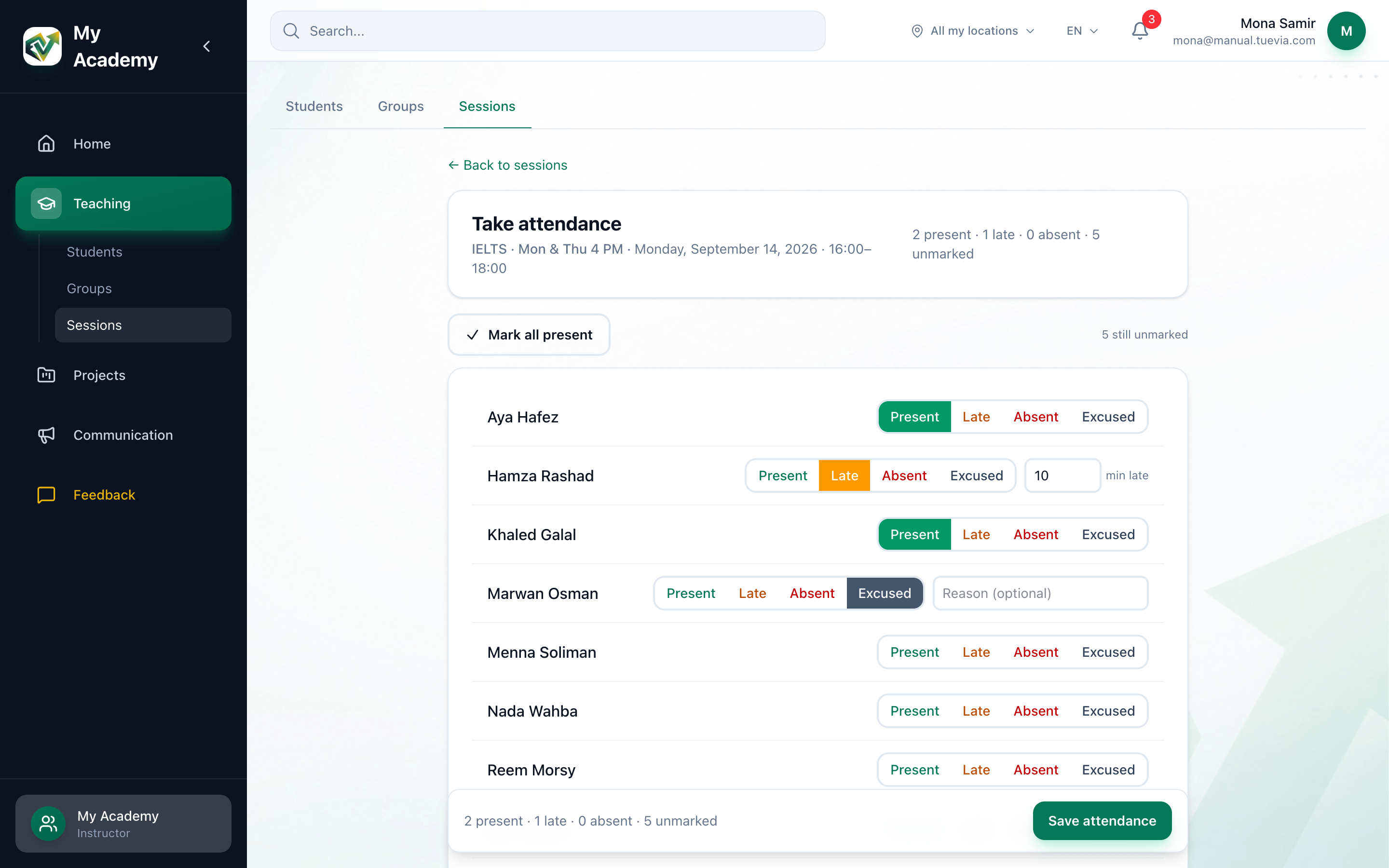
If most of the group came, press Mark all present first.
-
For each student, press Present, Late, Absent or Excused.
-
For a student who was late, enter the minutes late beside their name, if you know them.
-
For an excused student, enter the reason, if you want to.
-
Press Save attendance. Attendance saved. confirms it.
The top of the register gives the group, the date and the times. As you mark, the bar at the bottom counts who is present, late, absent and unmarked, and … still unmarked beside Mark all present says how many are left.
Nothing is saved until you press Save attendance: leaving the page before that loses the marks. Students you leave unmarked stay unmarked; they are not recorded as absent. To correct a register, open it again, change the marks and save again.
The register lists the group’s students whose enrolment is active. Today’s Sessions on Home lists only the sessions you teach, and only that day’s.
Mark attendance on a group’s page
Section titled “Mark attendance on a group’s page”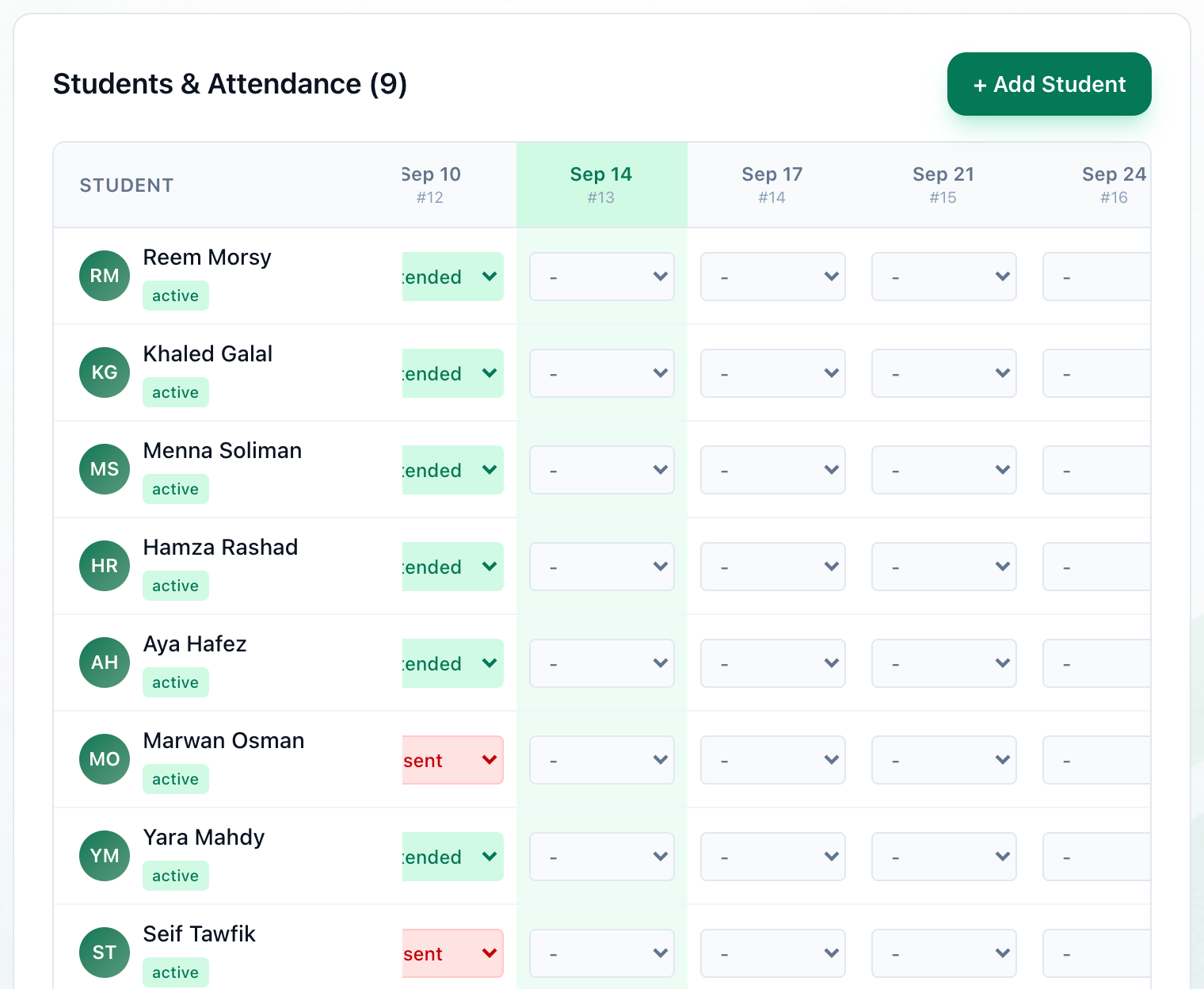
- Today's column
- Save
- Skip
-
On the group’s page, in Students & Attendance, find the student’s row and the session’s column; today’s column is highlighted. Choose Attended, Late, Absent or Excused. Attended and Absent are saved as soon as you choose them.
-
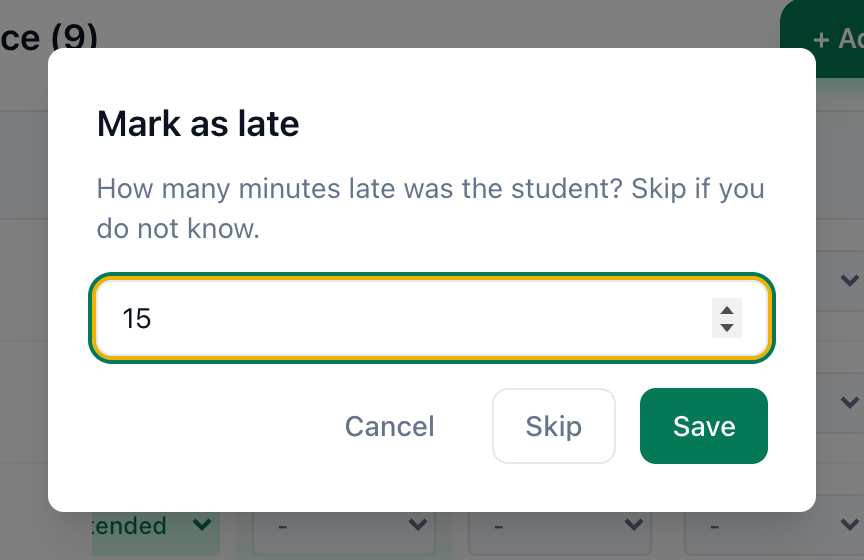
For Late or Excused, a box asks how many minutes late the student was, or the reason. Enter it and press Save.
-
Or press Skip to record the status without it. Cancel leaves the register as it was.
Every session of the group has a column, the past ones too, so this is also where you correct an older register. The key under the register gives the colour of each status, and of Not marked.
If something goes wrong
Section titled “If something goes wrong”-
You don’t have permission to mark attendance for this group.
You are not assigned to this group. If you teach it, ask for it to be assigned to you: see Instructors on a group. -
No students are enrolled in this group yet.
The group has no students with an active enrolment. See Adding students to a group. -
A message ending cannot mark attendance for cancelled session
The session was cancelled, and a cancelled session takes no attendance. -
Couldn’t save attendance.
The register was not saved. Keep the page open and press Save attendance again. -
Failed to update attendance
On a group’s page, that mark was not saved. Choose it again.
What happens next
Section titled “What happens next”- The marks show on the group’s page, in the session’s column of Students & Attendance.
- Tuevia does not notify students or parents when attendance is marked.