
Hours, session types and staff attendance
The rest of the Academy Settings tab: when the academy is open, what kinds of standalone session it runs, and the rules for staff attendance and leave.
Owners and admins can change these. So can anyone whose role, under My Academy, has Settings set to Manage, and who works in all of the academy’s locations.
Working hours and session types
Section titled “Working hours and session types”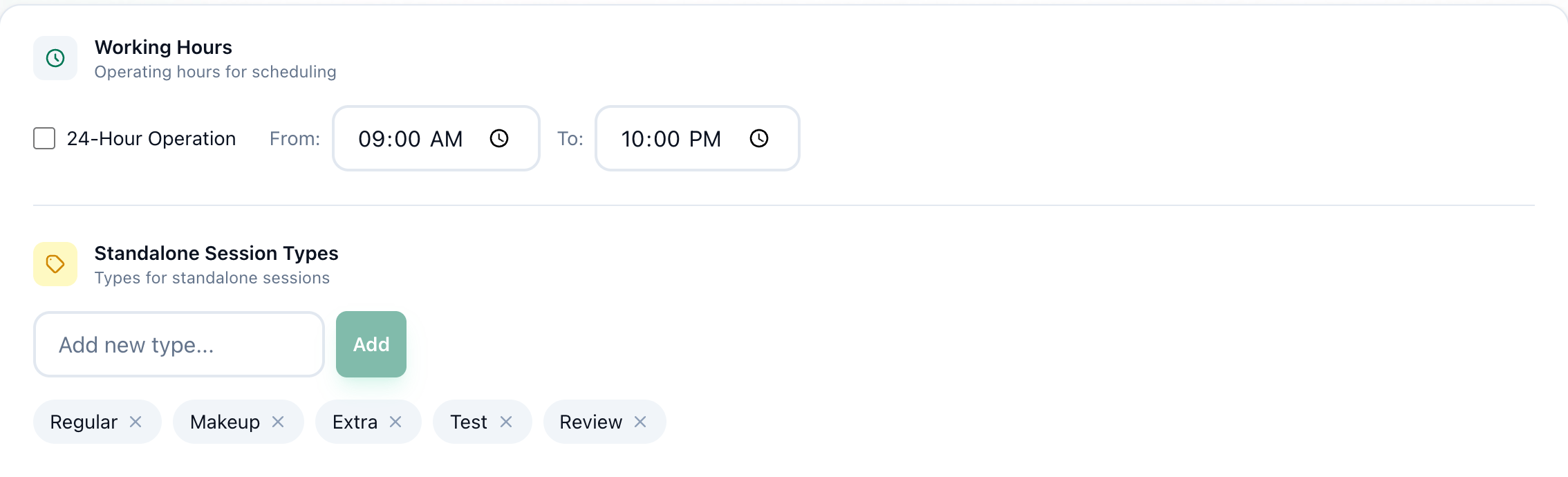
- Working Hours
- Standalone Session Types
-
On the Academy Settings tab, set Working Hours: the time the academy opens in From: and closes in To:. If it never closes, tick 24-Hour Operation.
-
Under Standalone Session Types, type a new type and press Add, or press the × on a type to remove it.
-
Press Save Settings at the foot of the page.
- Working Hours set the hours shown on the weekly schedule of groups, the times a group can start between, and the times a new standalone session starts with.
- Standalone Session Types are the choices of type for a standalone session. Tuevia starts you with Regular, Makeup, Extra, Test and Review.
Staff attendance and leave
Section titled “Staff attendance and leave”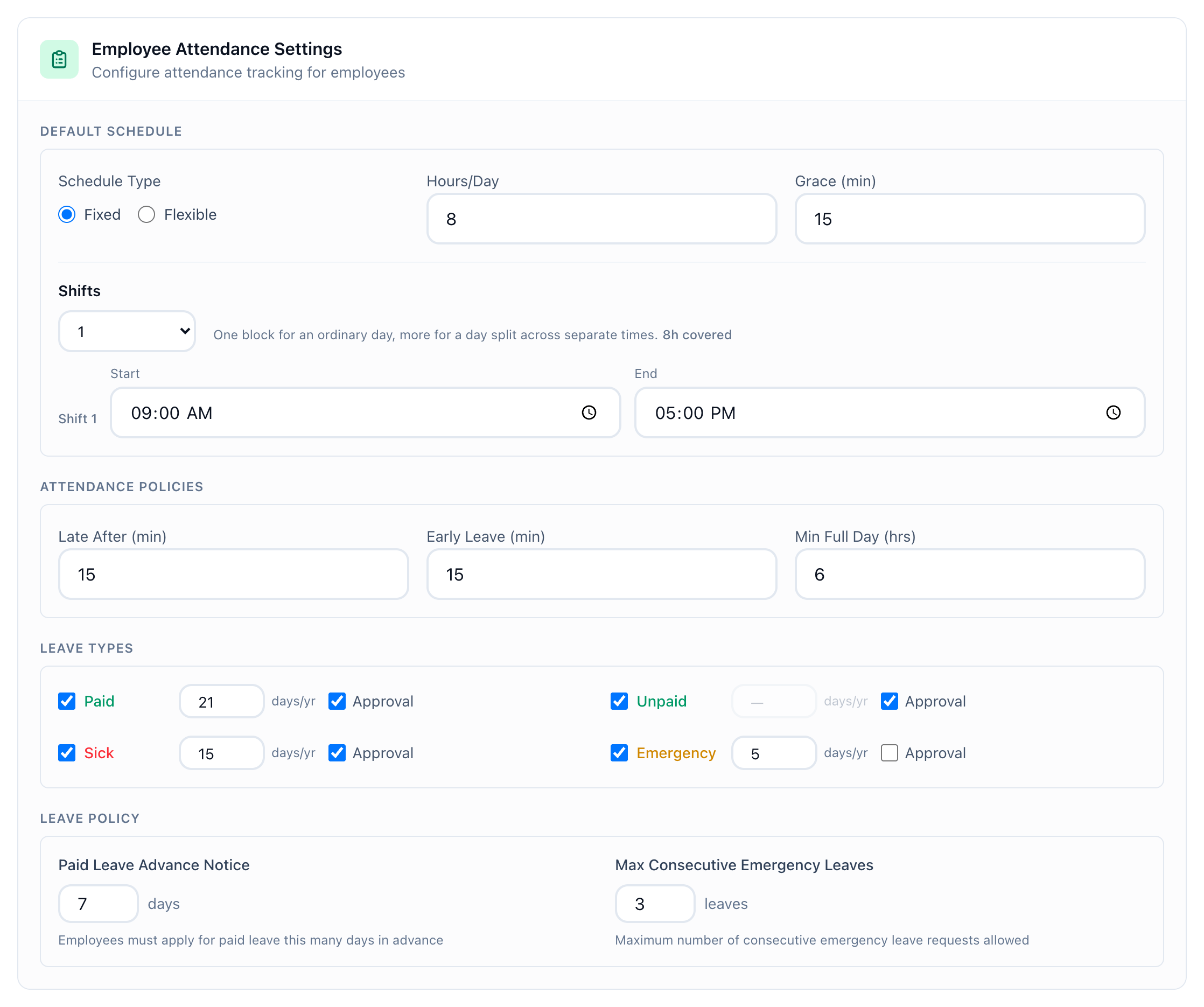
- Employee Attendance Settings
Employee Attendance Settings has four parts:
- Default Schedule. Schedule Type (Fixed or Flexible), Hours/Day, Grace (min), and for a fixed schedule its Shifts, each with a Start and an End.
- Attendance Policies. Late After (min), Early Leave (min) and Min Full Day (hrs).
- Leave Types. Paid, Unpaid, Sick and Emergency, each with a tick to turn it on, the days allowed each year (days/yr) and Approval.
- Leave Policy. Paid Leave Advance Notice, in days, and Max Consecutive Emergency Leaves.
When someone asks for leave, Tuevia checks the request against these: a paid leave must be asked for the number of days ahead set in Paid Leave Advance Notice, emergency leaves in a row stop at Max Consecutive Emergency Leaves, and a request cannot take more days than a type’s days/yr leaves.
Change what you need, then press Save Settings at the foot of the page.
If something goes wrong
Section titled “If something goes wrong”-
A fixed day needs at least one shift.
A Fixed schedule needs at least one shift. Add one, or choose Flexible. -
Shift 1 ends before it starts.
The shift’s End is earlier than its Start. Swap them.