
The employees list
People → Employees lists everyone who works in your academy: the owner, admins, instructors and anyone else you have invited. Owners, admins, and anyone whose role has access to Employees can open it.
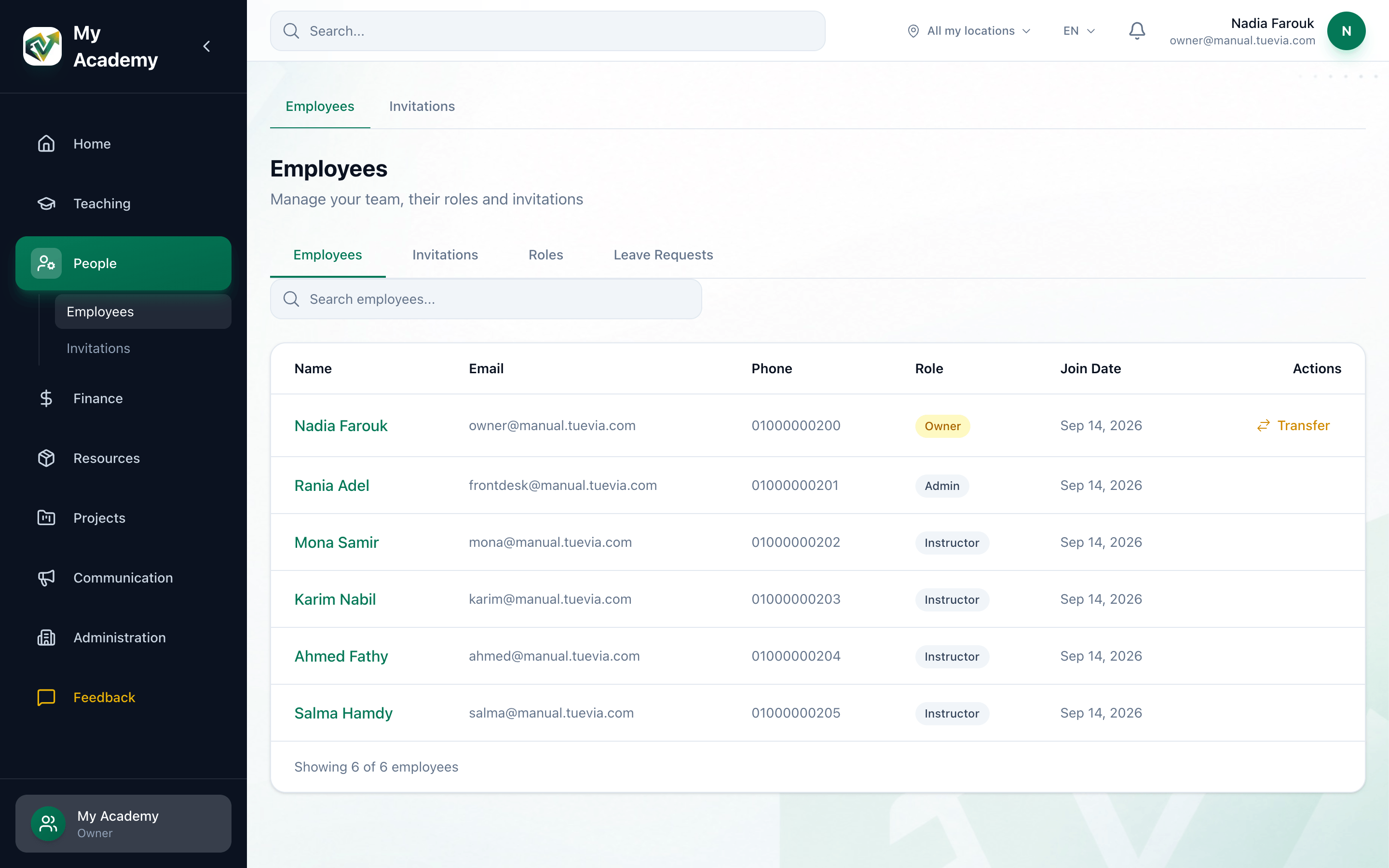
- The four tabs
- Search
Find someone
Section titled “Find someone”-
In the sidebar, open People, then Employees.
-
Type into Search employees…. The list narrows as you type, matching a name, an email address, a phone number or a role.
-
Press a name to open that person’s profile.
Each row shows Name, Email, Phone, Role and Join Date. Under the list, Showing … of … employees counts the people the search has left.
The four tabs
Section titled “The four tabs”-
Employees
The list itself. -
Invitations
The invitations you have sent, and Invite Employee for a new one. See Adding an employee. -
Roles
Your academy’s roles and what each may do. See Roles. -
Leave Requests
The leave your staff ask for from their home screen. Owners, and anyone whose role can manage Leave Requests, press Approve or Reject on each. See Home for how an employee asks for leave.
If you are the owner, your own row has a Transfer button. It hands the academy to somebody else: see Transferring ownership.
What happens next
Section titled “What happens next”- Add an employee by inviting them.
- Open a profile to see their details and attendance.
- Change someone’s role or where they work.