
Storing, unstoring and adjusting stock
Storing moves some of an item from available into storage - the spare projector, next term’s books. Unstoring brings them back into use. Neither changes how many the academy owns: the item’s Total stays the same. Owners, admins, and anyone whose role can manage Resources can do this.
Store items
Section titled “Store items”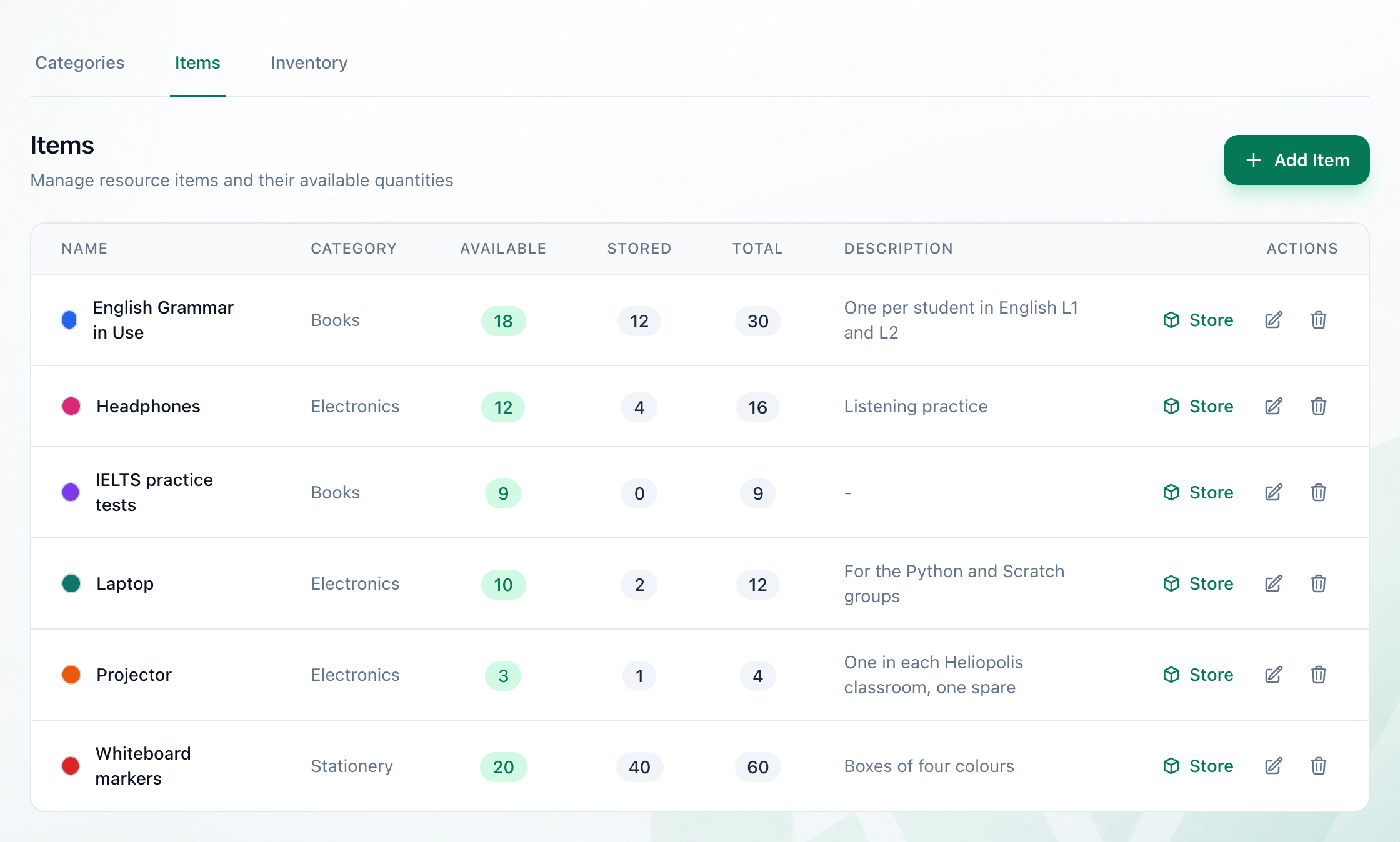
- Items
- Store
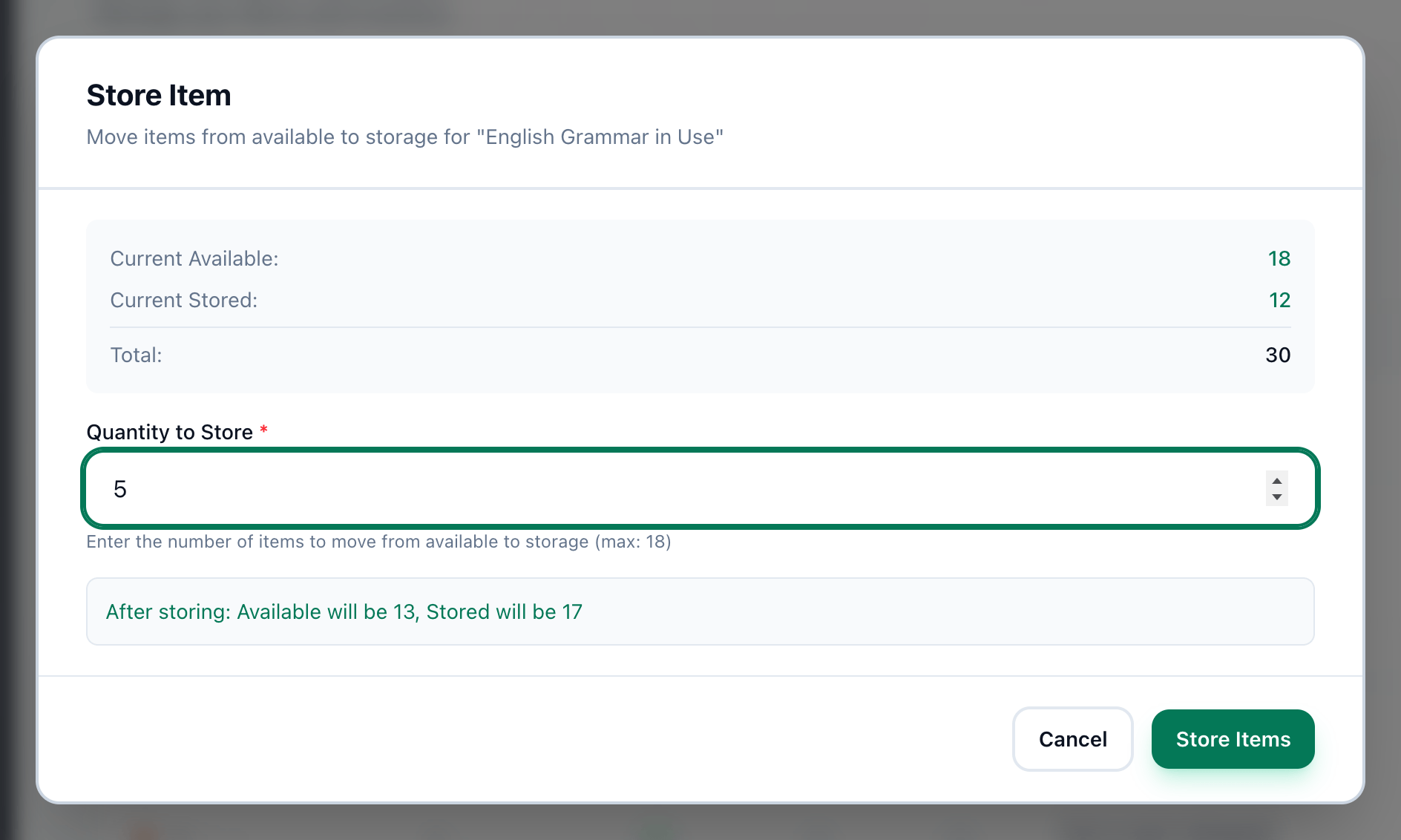
- Quantity to Store
- After storing
- Store Items
-
On Resources, open the Items tab.
-
Press Store in the item’s row. Store Item opens with the item’s Current Available, Current Stored and Total.
-
Enter how many to put away in Quantity to Store. The line under the field says the most you can store: everything that is available.
-
Check the line below it, which says what Available and Stored will be afterwards.
-
Press Store Items. The row’s Available goes down and Stored goes up by the same number.
Unstore items
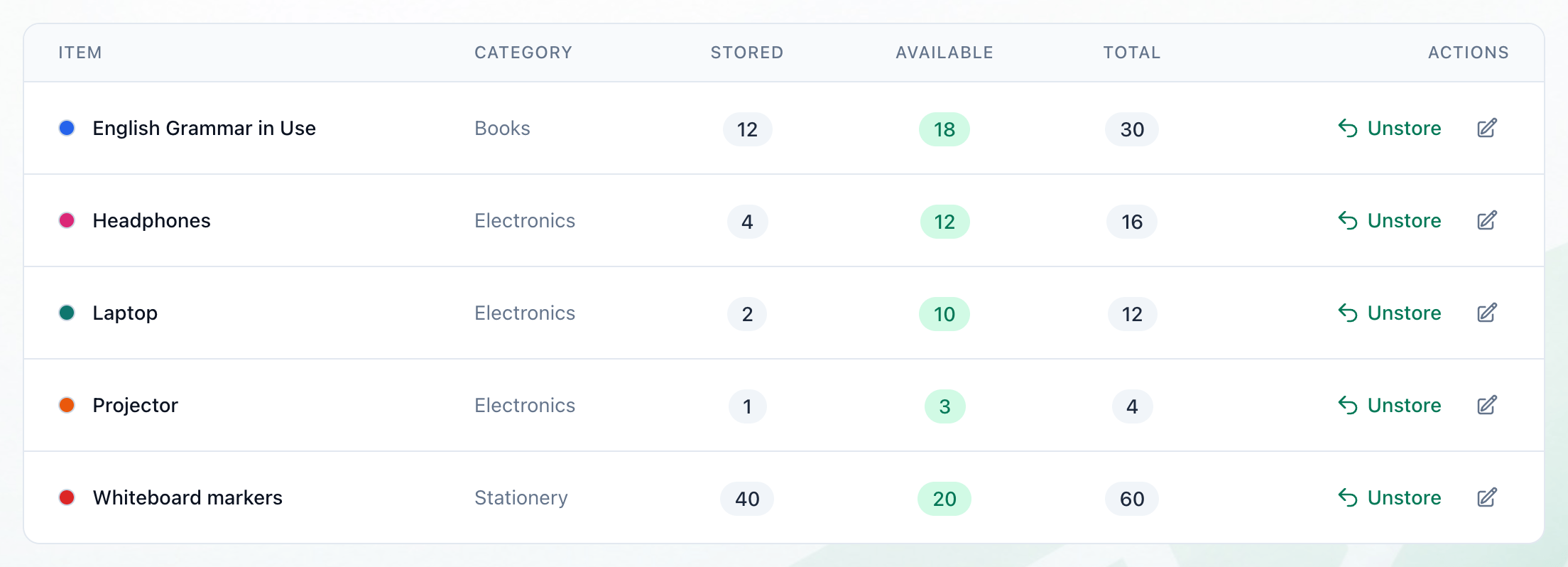
Section titled “Unstore items”The Inventory tab lists only the items that have some in storage.
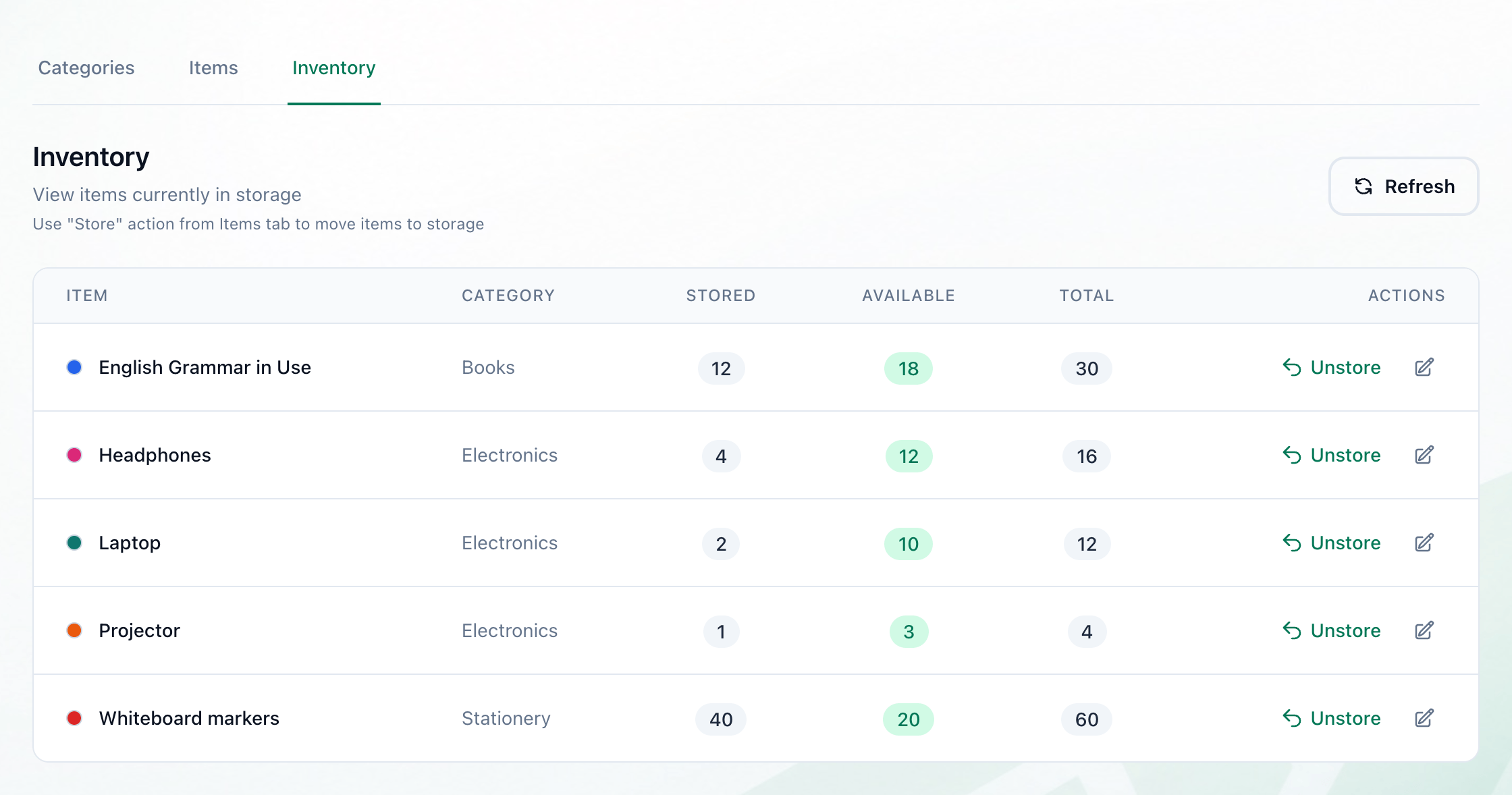
- Inventory
- Unstore
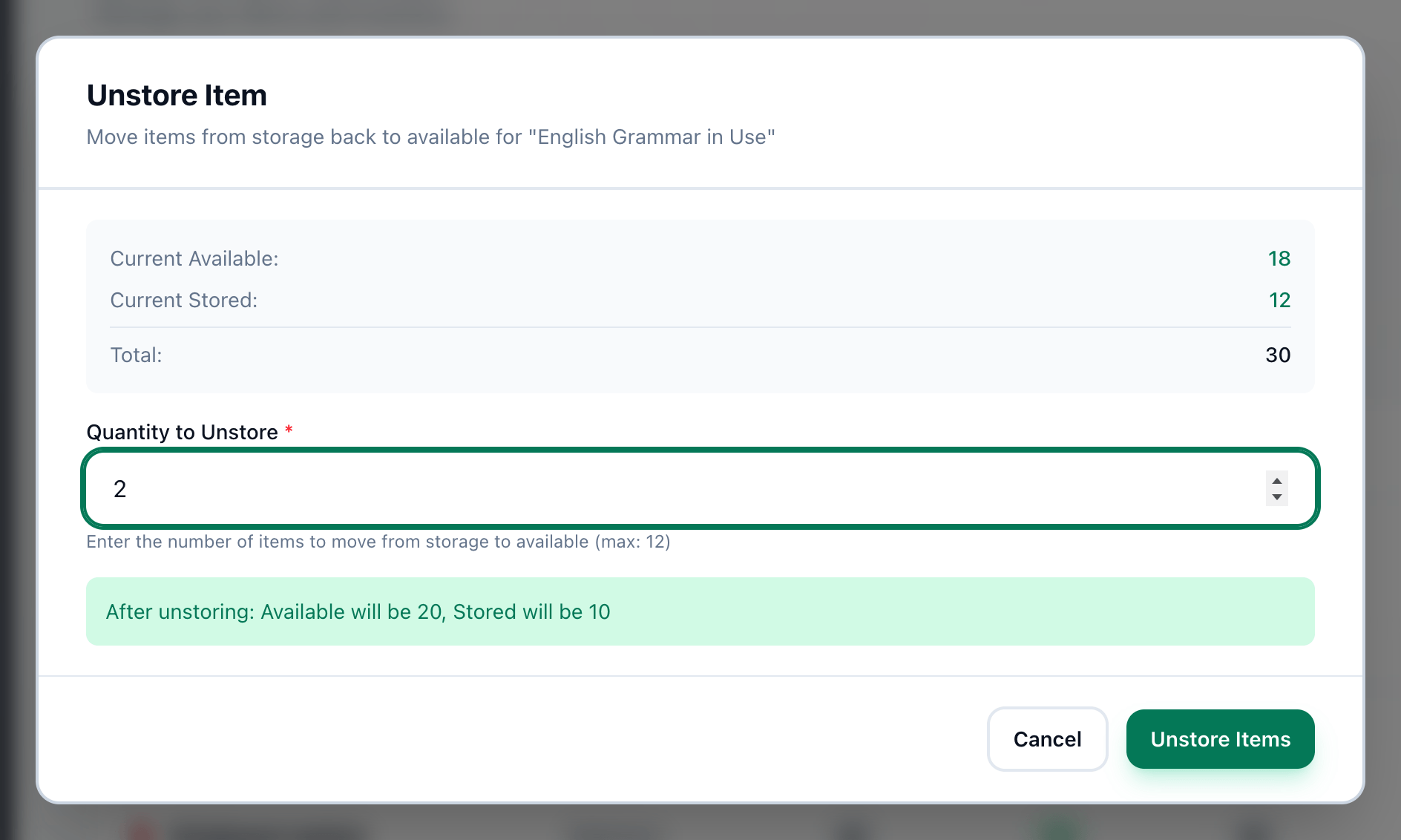
- Quantity to Unstore
- Unstore Items
-
On Resources, open the Inventory tab.
-
Press Unstore in the item’s row.
-
Enter how many to bring back into use in Quantity to Unstore. You can unstore up to everything that is stored, and the line under the field says so.
-
Press Unstore Items. They count as available again. An item with nothing left in storage leaves the Inventory tab.
Correct the number in storage
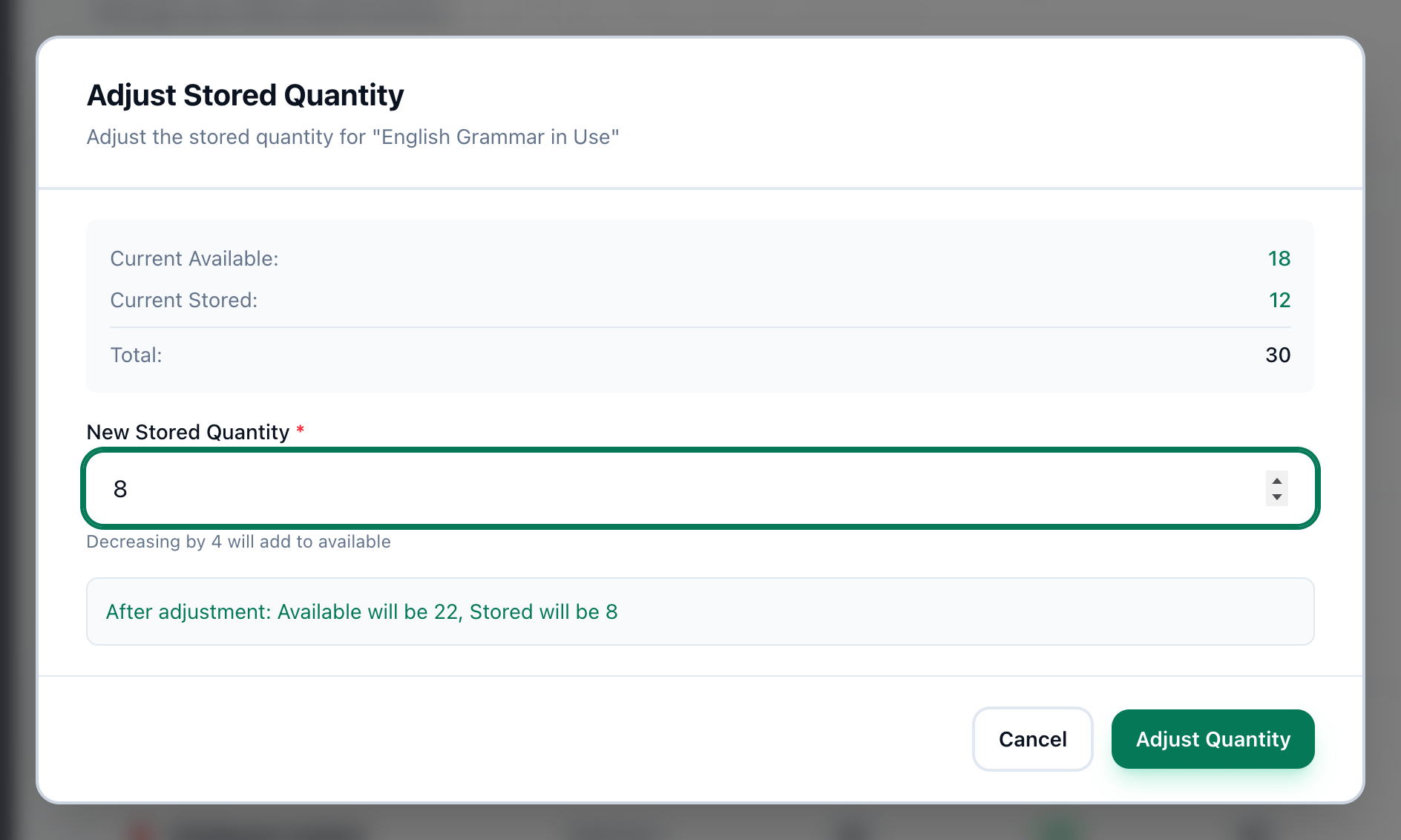
Section titled “Correct the number in storage”When the number stored is wrong - somebody counted the storeroom - set it directly. The difference comes out of available, or goes back into it, so the total still does not change. To record items bought or lost, change the item’s available quantity instead.
- Adjust stored quantity
- New Stored Quantity
- Adjust Quantity
-
On the Inventory tab, press the pencil button in the item’s row.
-
Enter the right number in New Stored Quantity. Under the field, Tuevia says whether the change takes from available or adds to it, and the line below says what Available and Stored will be.
-
Press Adjust Quantity.
If something goes wrong
Section titled “If something goes wrong”-
Store is greyed out in a row
None of that item is available, so there is nothing to store. Hovering over it says No available quantity to store. -
Cannot set stored to 20. Not enough available quantity.
Raising the stored number takes the difference from available, and there are not that many available. Adjust Quantity stays greyed out until the number fits. -
An item is not on the Inventory tab
None of it is stored. Store some from the Items tab first. -
No items in storage
Nothing in the academy is stored yet.
What happens next
Section titled “What happens next”The Items tab always shows each item’s Available, Stored and Total side by side. To remove an item altogether, see deleting items and categories.