
Academy fields
Academy fields are what your academy records about its students beyond Tuevia’s own details - a national ID, a school, a shirt size. You add a field once, and every student’s profile has it. Both happen in the Academy fields card on a student’s profile.
Owners, admins and anyone whose role has Manage access to Students can fill the fields in and manage them. Anyone else who opens the profile sees the values.
Fill in a student’s fields
Section titled “Fill in a student’s fields”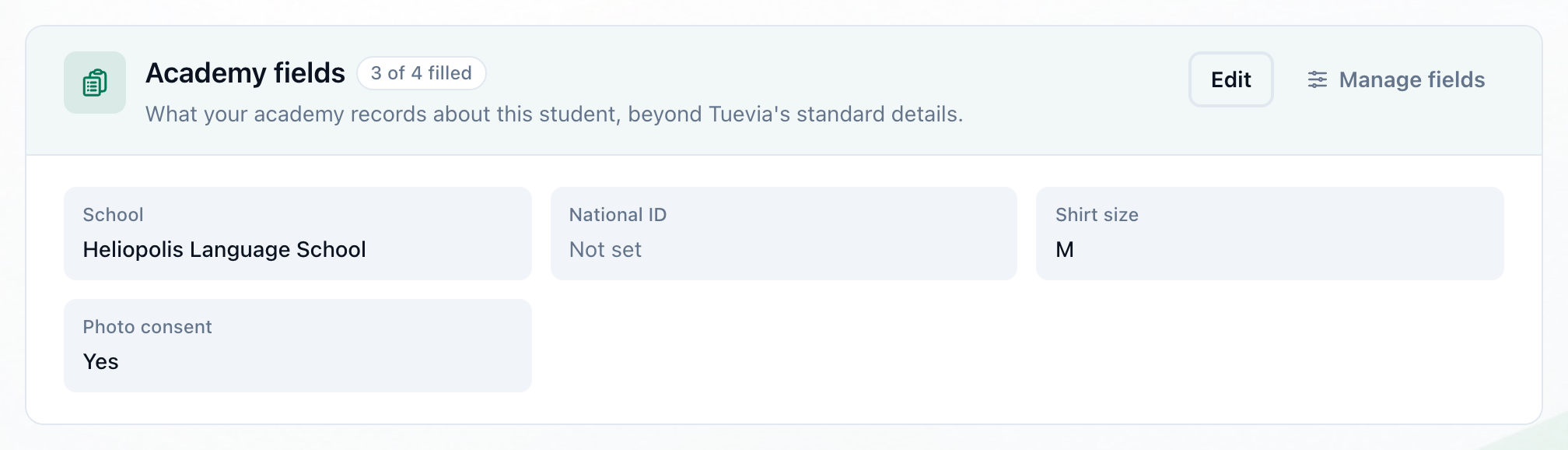
- Edit
- Save
-
On the student’s profile, in Academy fields, press Edit.
-
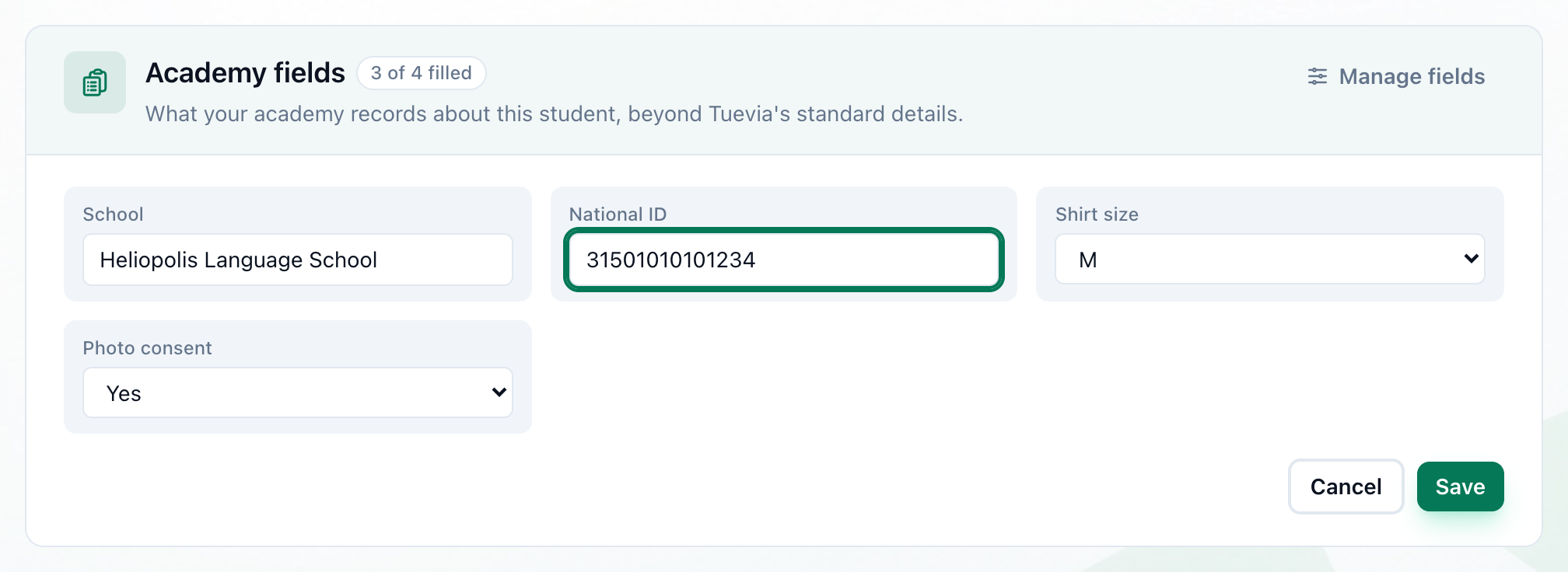
Fill in or change the values. A Dropdown or Yes / No field is a menu, and Not set in it empties the field.
-
Press Save. Cancel leaves the values as they were.
The card counts how many of the fields are filled, and shows Not set for an empty one. A * marks a required field.
Add a field
Section titled “Add a field”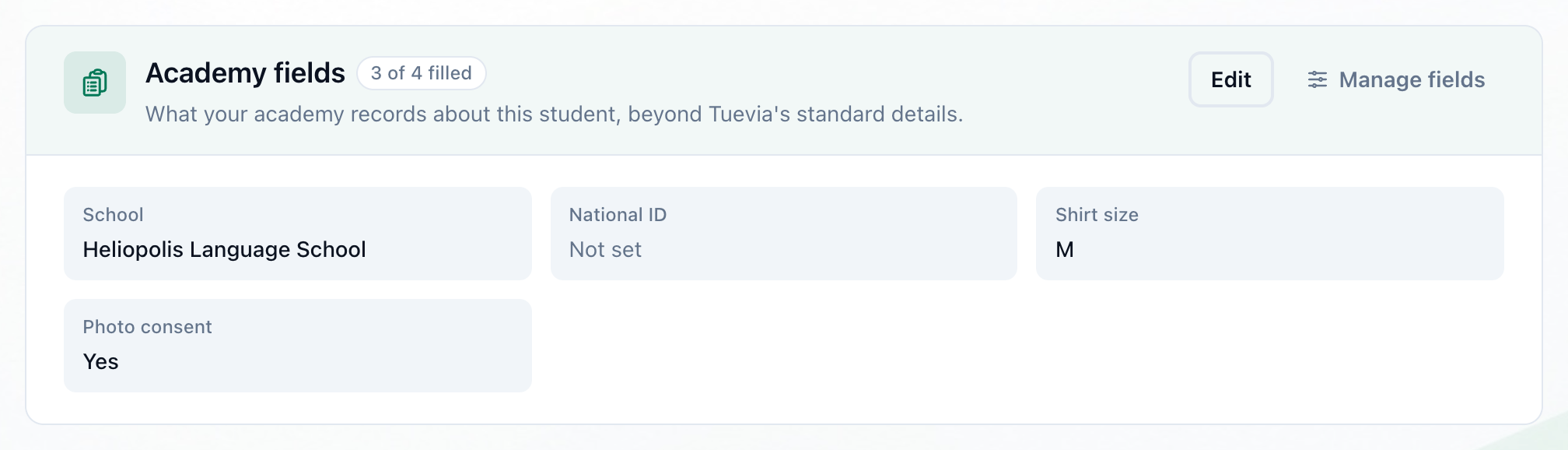
- Manage fields
- Field name
- Type
- Required
- Add field
-
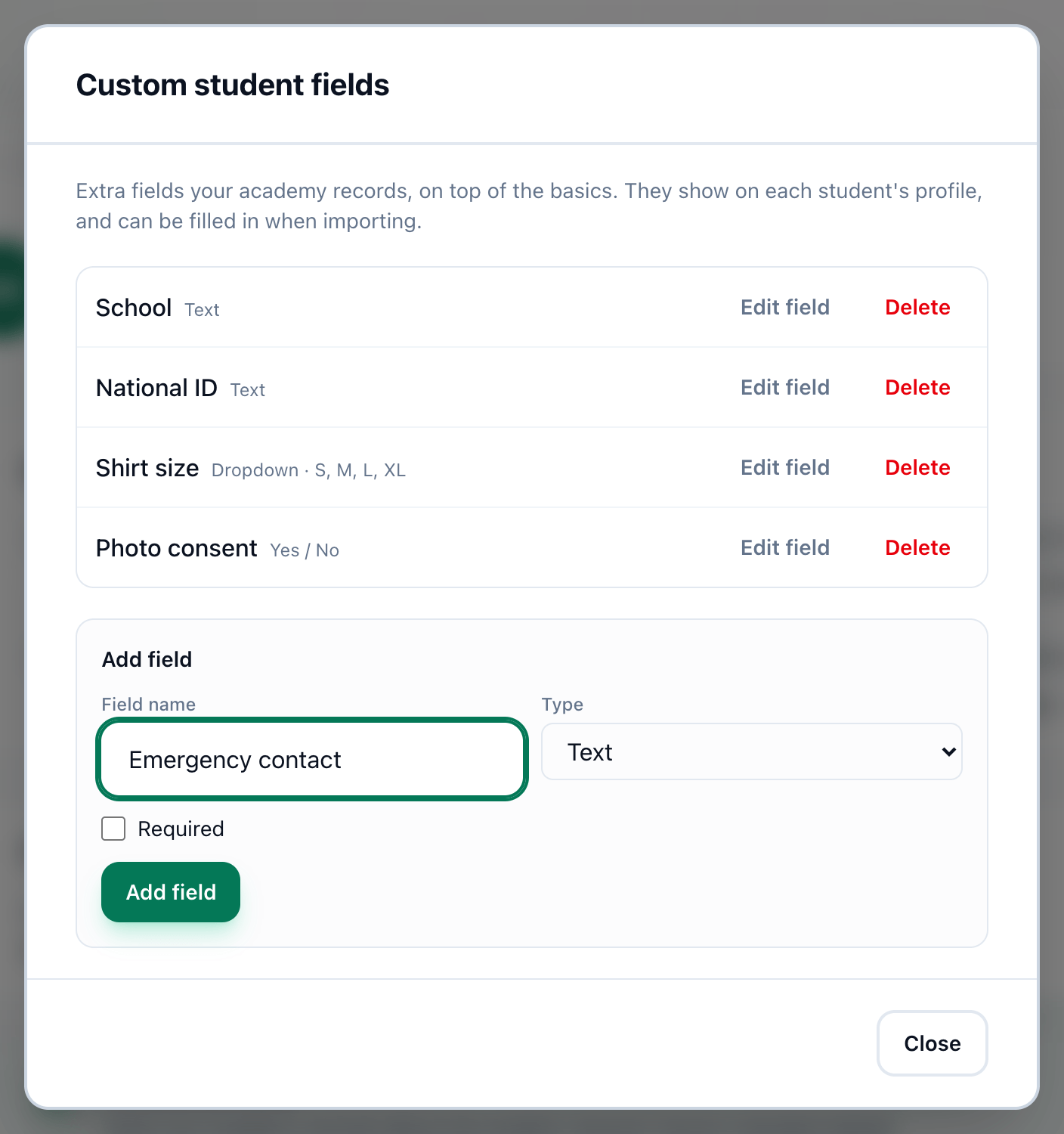
On any student’s profile, in Academy fields, press Manage fields. The Custom student fields window lists the fields your academy has.
-
Enter the field’s name in Field name.
-
Choose its Type: Text, Number, Date, Dropdown or Yes / No. For Dropdown, write the choices in Options, one on each line.
-
Tick Required if every student must have a value.
-
Press Add field. The field joins the list above, and Close closes the window.
If your academy has no fields yet, the card says so and offers Add field, which opens the same window.
Change or delete a field
Section titled “Change or delete a field”In Custom student fields, each field has two buttons:
- Edit field puts the field into the form. Change it and press Save changes, or Cancel.
- Delete asks you to confirm: Delete this field? Existing student values for it stay in the data but stop showing.
If something goes wrong
Section titled “If something goes wrong”-
… is required
You emptied a required field - the message names it. Give it a value. -
… must be a number
A Number field holds something else. Enter digits only. -
Could not save the academy fields
Tuevia could not save the values. Try again. -
In Custom student fields, Field name appears in red when you press Add field without a name, and One per line — the allowed choices for a dropdown. when a Dropdown has no options.
What happens next
Section titled “What happens next”- Every student’s profile shows the new field, as Not set until somebody fills it.
- When you import students, your fields are listed under Your own columns, and a column with a field’s name is matched to it.